



Do you have a question about the Collected by Lexmark program?
You’ll find the answer in the FAQ. It includes all the information you need to navigate the platform, from tracking your order to resetting your password.
FREQUENT QUESTIONS ABOUT THE CARTRIDGE COLLECTION PROGRAMME
How can I return my used cartridges?
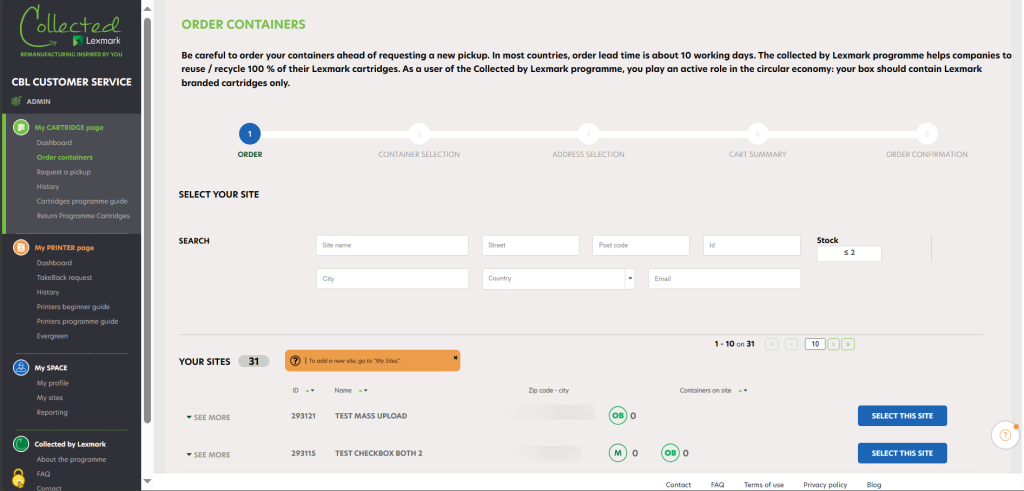
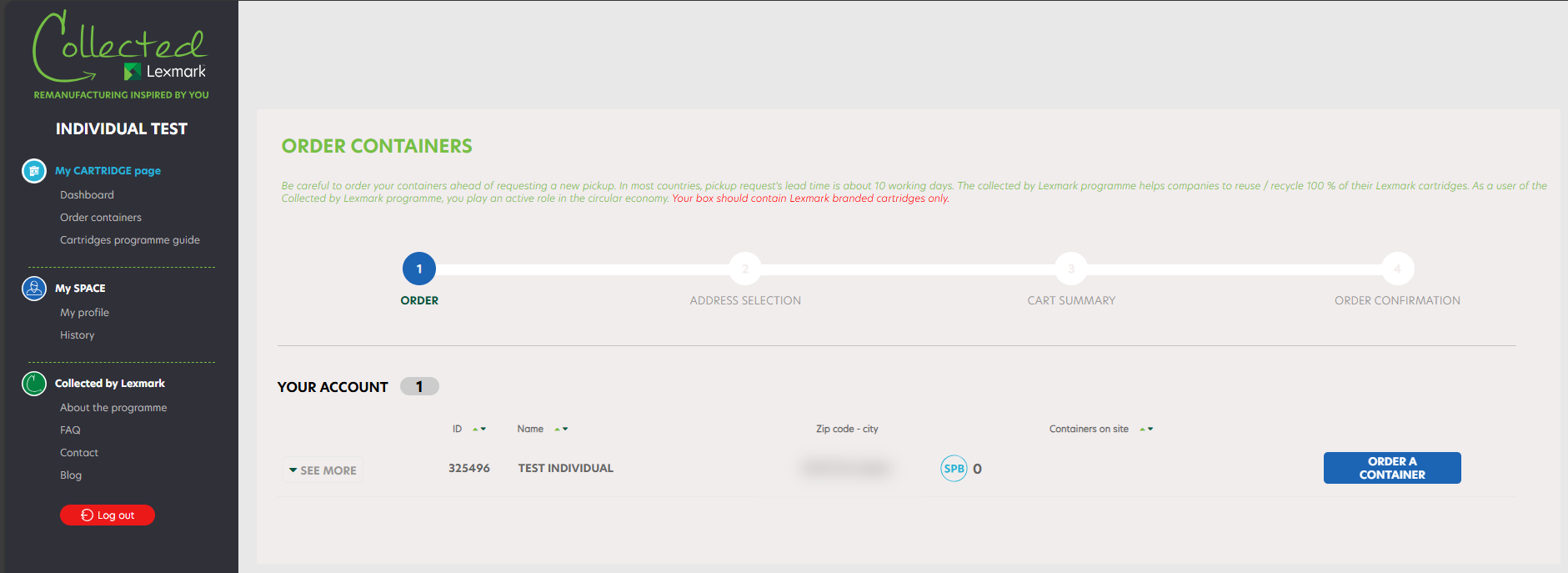
To order new containers for your company, click on « Order containers ». The list of your companies is displayed. Thanks to the search engine you can easily find a company by typing its name and its zipcode.
You can see the number of each box type that you have in stock (it depends on the country allowance). In case you see two figures such as 1+1, it means that you have 1 box in stock and 1 box in pending order in your cart.
Select the chosen company and on the right side, by clicking on « Select this site ». You can check the information about your companies by clicking on the button « See more » on the left.
 |
A container order is already in progress for this company, you will not be able to order new ones until you’re received your order. |
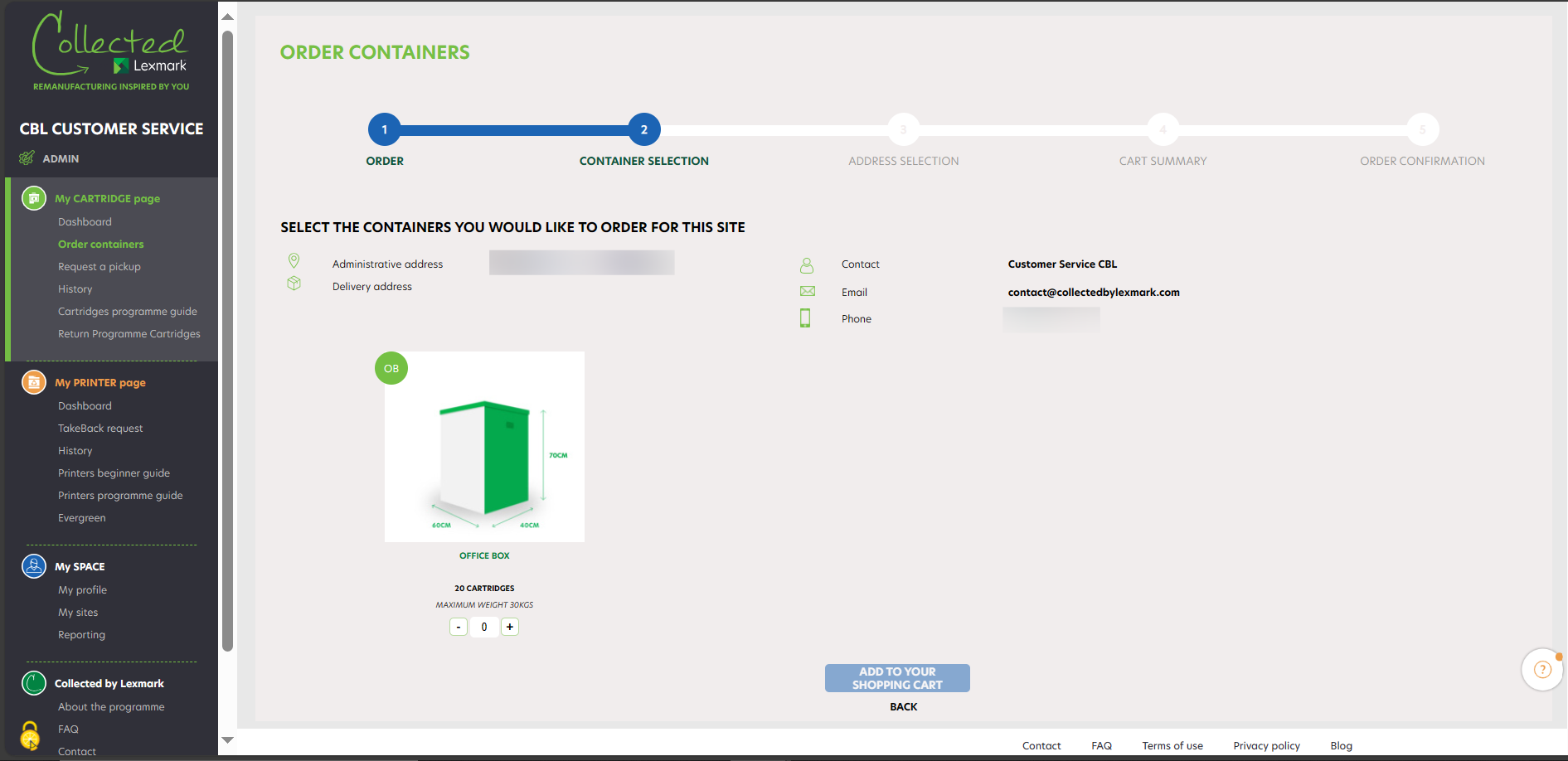
After clicking on « Select this site », you reach the second step of the process where you can choose the size and quantity of containers you need to have delivered. Click on « Add to your shopping cart » to go to the next step. Your order is placed in the shopping cart. You can see at which step you are in the order process thanks to the advanced progression bar.
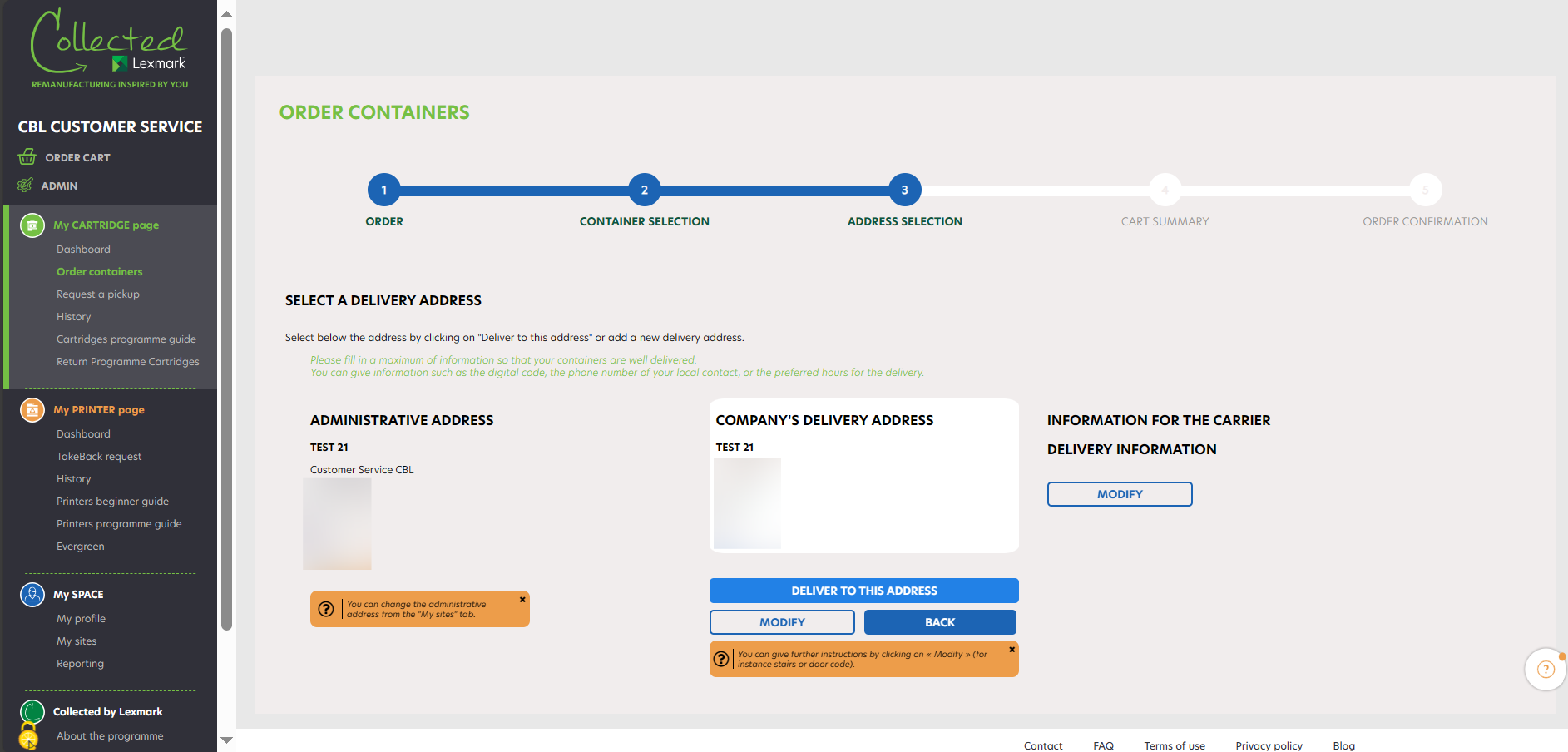
At step 3, you find your delivery details (company name, administrative address and company’s delivery address). You can modify the delivery address simply by clicking on « Modify », and go on with the process by clicking on « Deliver to this address ».
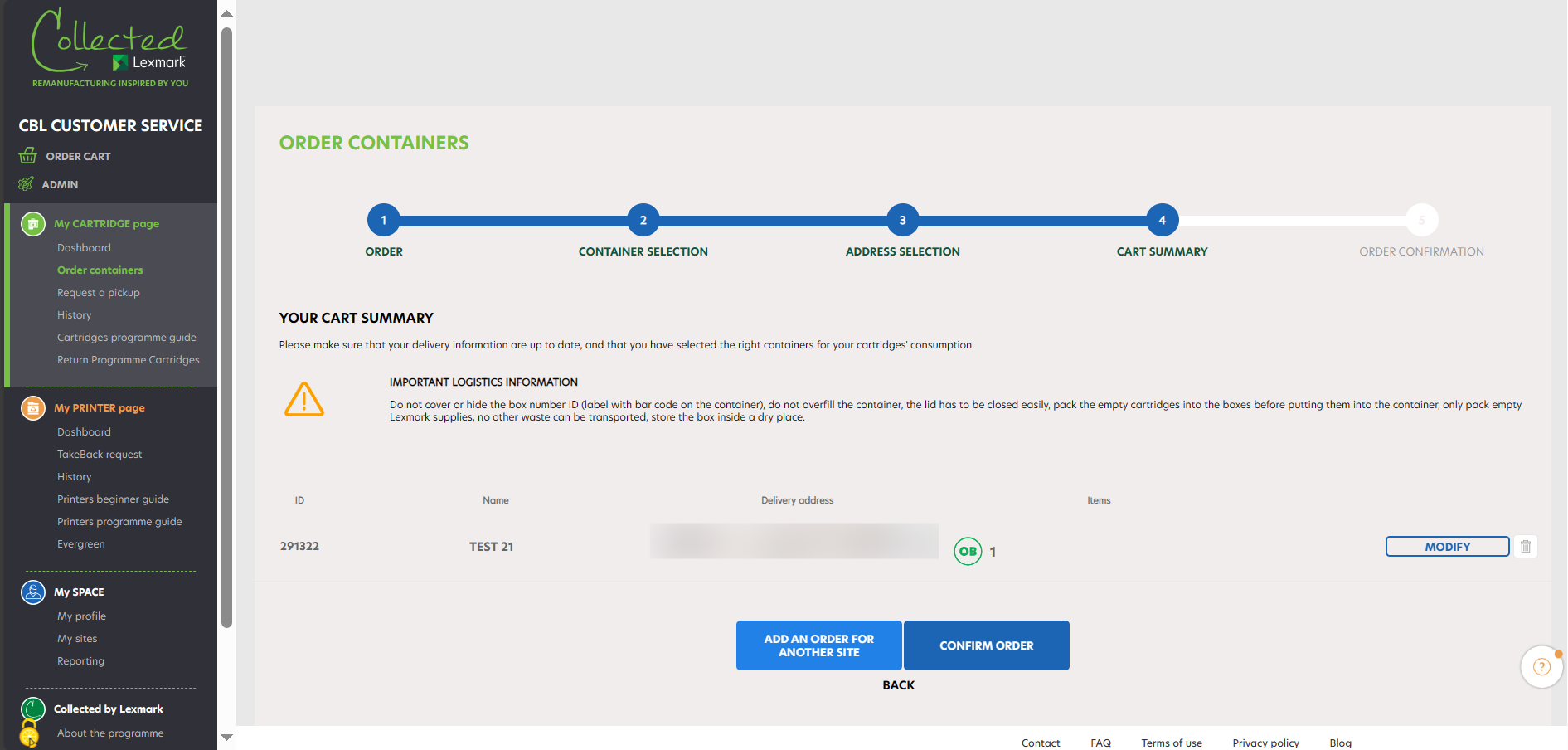
At step 4, you find your order details (company name, number of containers to be delivered). You can modify by clicking on « MODIFY » or delete the request by clicking on the bin. Once you click on « Confirm order », your order request is sent. If you want to add another order for another site, you can click on « ADD AN ORDER FOR ANOTHER SITE ».
Once your order is processed, you receive an order confirmation email with the details of your order within 24h. You can cancel your order within the next 4 hours on the history page.
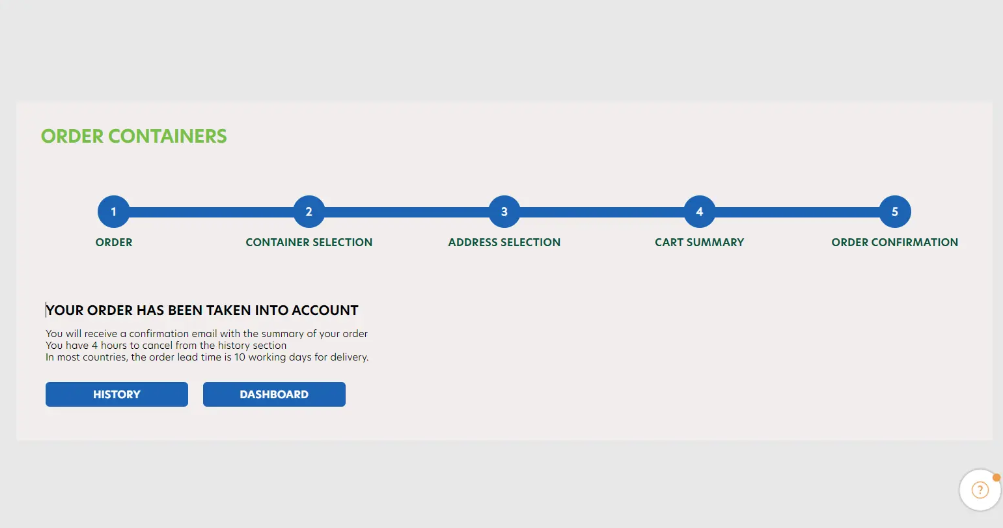
At any step of this process you can go back to the previous step by clicking on the « Back » button . Moreover, if you go back to the first step, your order is still registered in your cart. Therefore, you can resume it at any time.
Is it possible to download a label to return my cartridges without ordering a container?
Lexmark is making great strides in resources preservation while helping you reduce waste. The Collected by Lexmark programme comes on top of our legal obligations.
Our customers can drop off their cartridges at their nearest WEEE collection points, but should they want to play an active part in the circular economy they can support this programme.
Collectively, we can help tackle resources scarcity and help increasing the number of remanufactured products. Therefore, our circular economy programme is built for bulk returns, not individual returns to stay consistent with the environmental preservation.
Offering a single return label would imply more printer paper and plastics, more transportation thus more pollution.
Instead, Lexmark offers to individual users a small box which can fit in up to 4 cartridges. It is the small container option for consumers willing to favour reuse over recycling.
I cannot find my printer reference (printer serial number).
The Printer Serial Number must be :
- Exactly 13 digits in length (If the one you have isn’t, add “0” to make the number 13 figures long).
- The first 5 digits must be numbers.
- The last 8 digits can be a combination of number and letter.
- Normally it can be found behind the front door, or it is located on the label on the printer’s back cover.
Is this programme free ?
Collected by Lexmark is the web platform that enables medium and large companies to participate into LCCP (consumption from 10 cartridges per year). It’s free of charge and facilitates the collection management of the cartridges at their end of life and helps their remanufacturing before they are fully recycled. The Collected by Lexmark programme enhances all stakeholders corporate social responsibility’s strategy and helps the participation of our customers in the circular economy.
How can I order a container ?
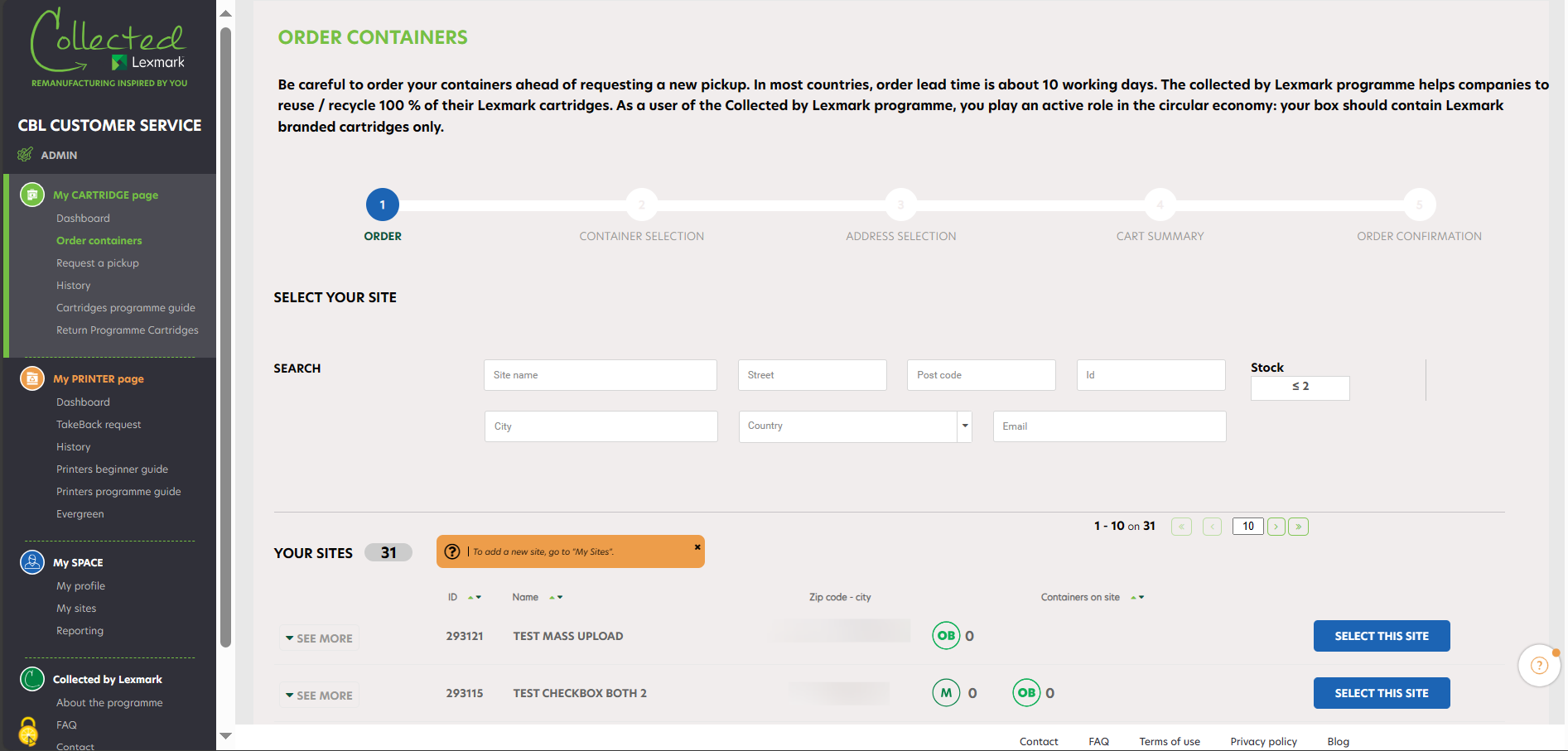
To order new containers for your company, click on « Order containers ». The list of your companies is displayed. Thanks to the search engine you can easily find a company by typing its name and its zipcode.
You can see the number of each box type that you have in stock (it depends on the country allowance). In case you see two figures such as 1+1, it means that you have 1 box in stock and 1 box in pending order in your cart.
Select the chosen company and on the right side, by clicking on « Select this site ». You can check the information about your companies by clicking on the button « See more » on the left.
|
A container order is already in progress for this company, you will not be able to order new ones until you’re received your order. |
After clicking on « Select this site », you reach the second step of the process where you can choose the size and quantity of containers you need to have delivered. Click on « Add to your shopping cart » to go to the next step. Your order is placed in the shopping cart. You can see at which step you are in the order process thanks to the advanced progression bar.
At step 3, you find your delivery details (company name, administrative address and company’s delivery address). You can modify the delivery address simply by clicking on « Modify », and go on with the process by clicking on « Deliver to this address ».
At step 4, you find your order details (company name, number of containers to be delivered). You can modify by clicking on « MODIFY » or delete the request by clicking on the bin. Once you click on « Confirm order », your order request is sent. If you want to add another order for another site, you can click on « ADD AN ORDER FOR ANOTHER SITE ».
Once your order is processed, you receive an order confirmation email with the details of your order within 24h. You can cancel your order within the next 4 hours on the history page.
At any step of this process you can go back to the previous step by clicking on the « Back » button . Moreover, if you go back to the first step, your order is still registered in your cart. Therefore, you can resume it at any time.
How can I ask for a pickup?
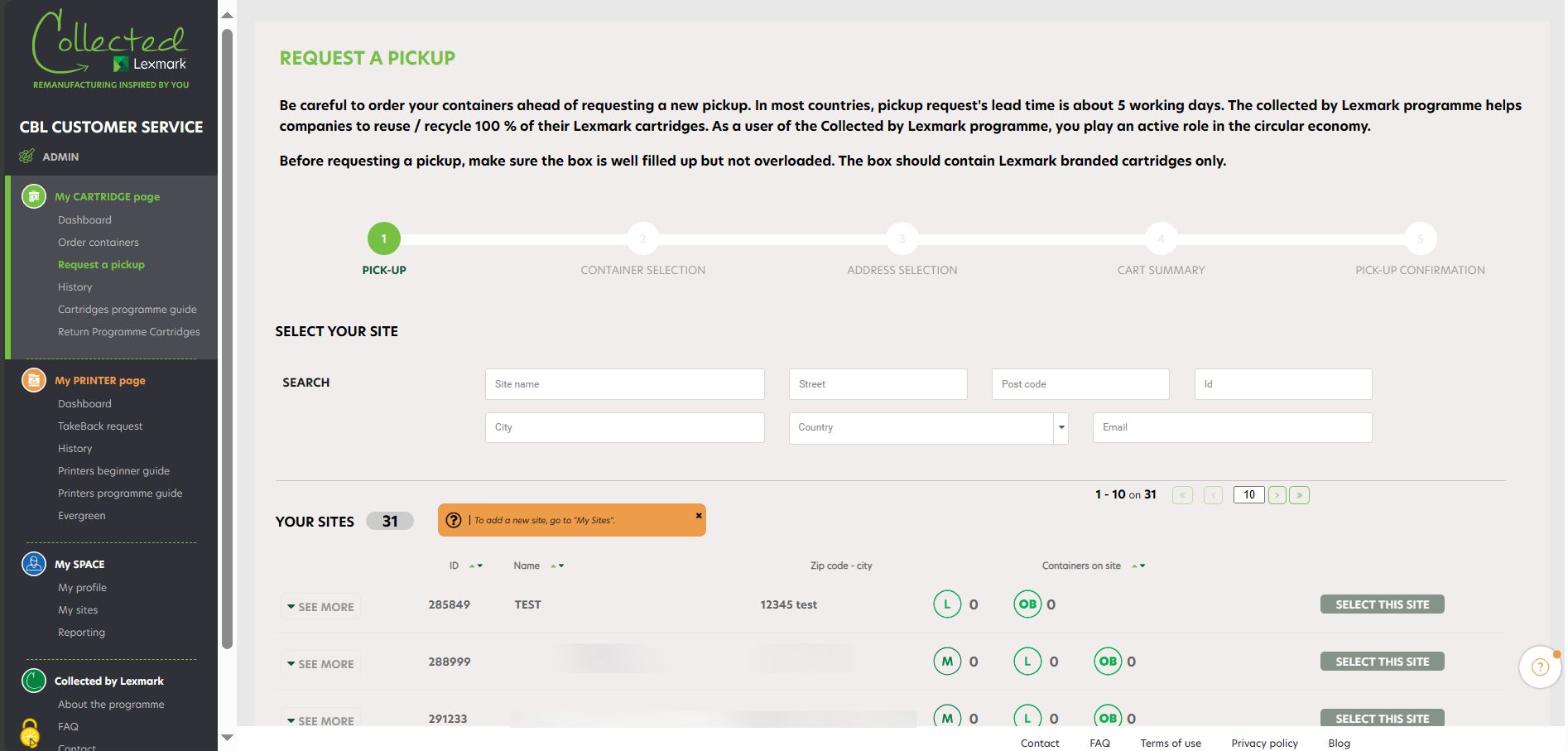
To request a container pickup for your company, click on « Request a pickup ». The list of your companies is displayed. Thanks to the search engine, you can easily find a company by typing its name and its zipcode.
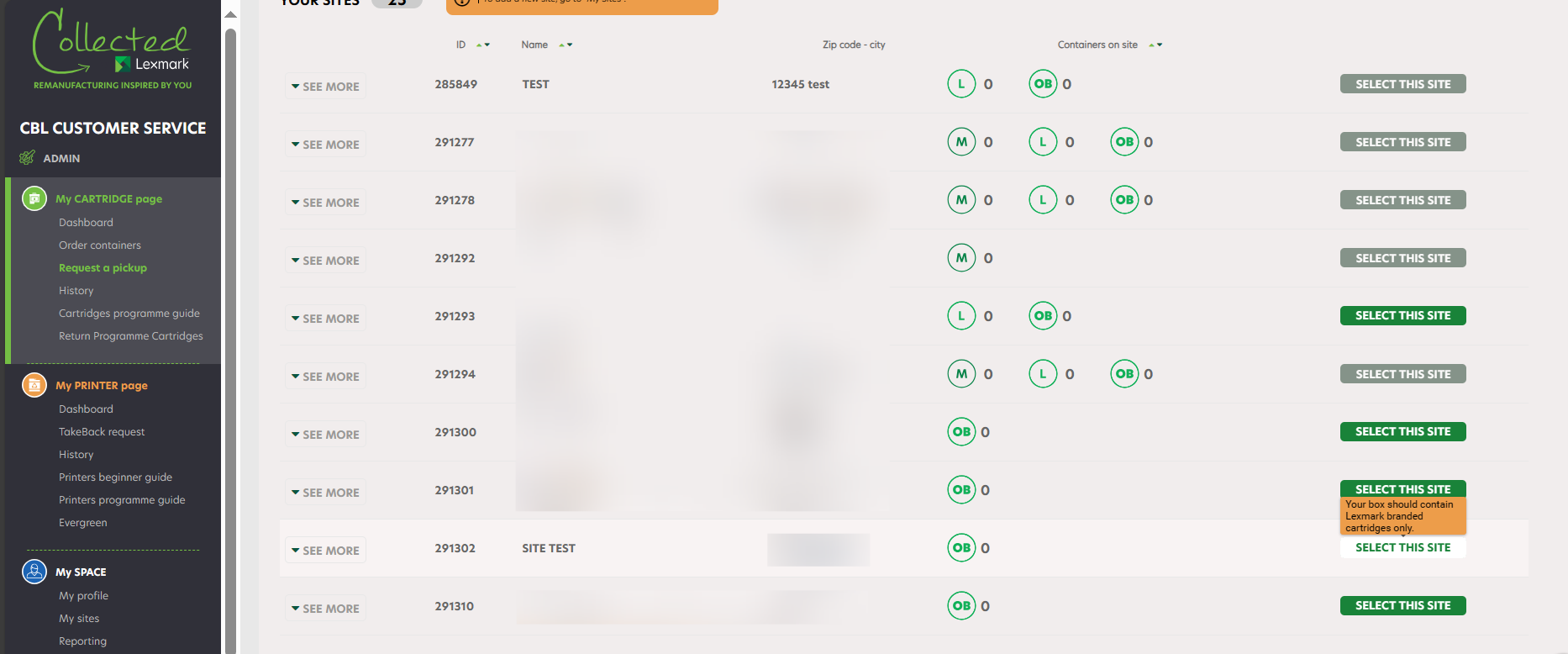
Select the chosen company by clicking on « Select this site ». You can check the information about your companies by clicking on the button « See more » on the left. You might see one icon :
|
A pickup order is already in progress for this company, you will not be able to request a new one until your collection has been done. |
After clicking on « Select this site », you reach on the second step of the process where you can choose the size and quantity of containers that have to be collected (5 containers per size and per collection maximum). On the top you can see your company information. Click on « Confirm Pickup » to go to the next step. You can see at which step of the pickup process you are with the progression bar.
You can modify or delete the request at the last confirmation stage.
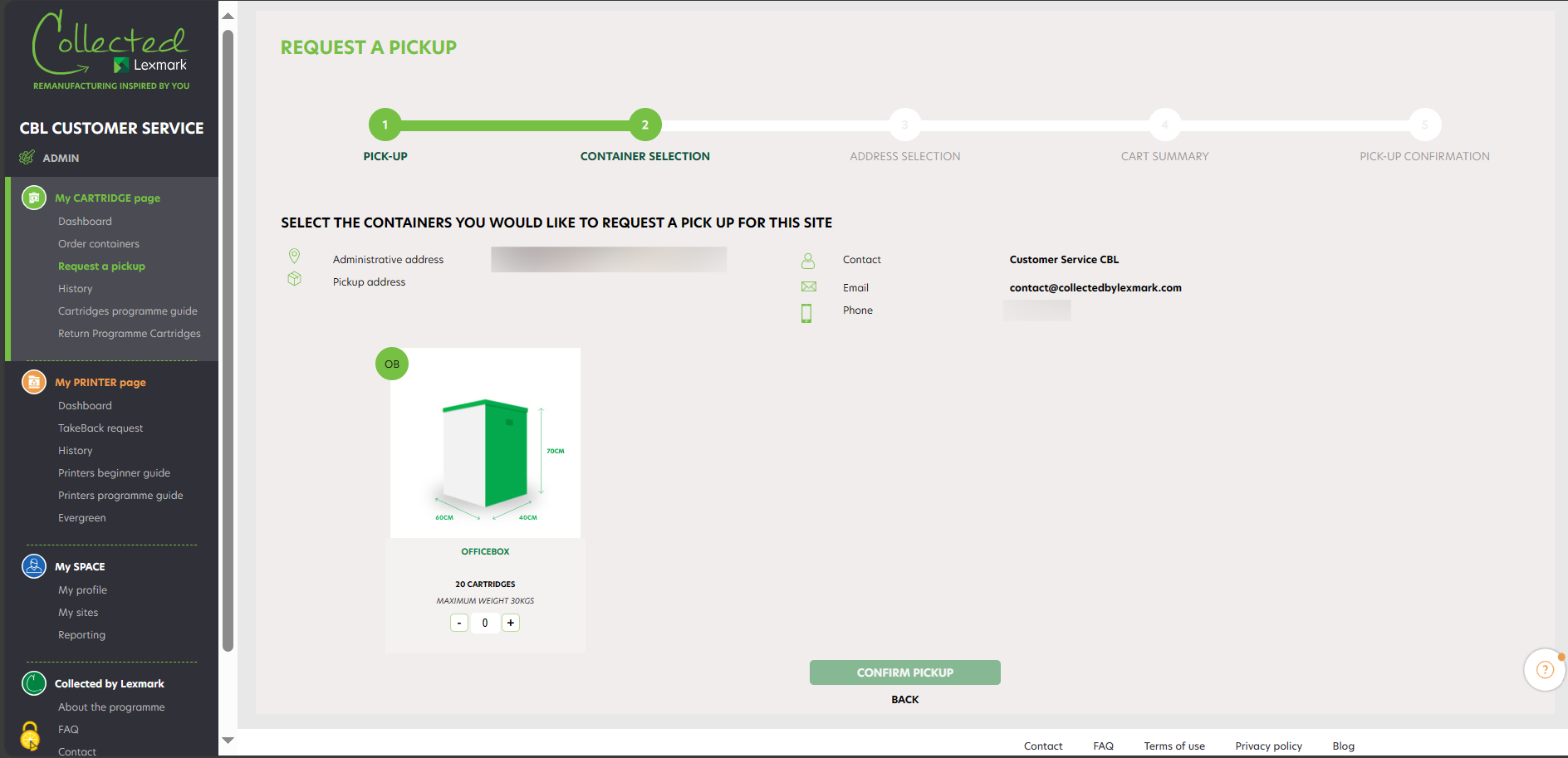
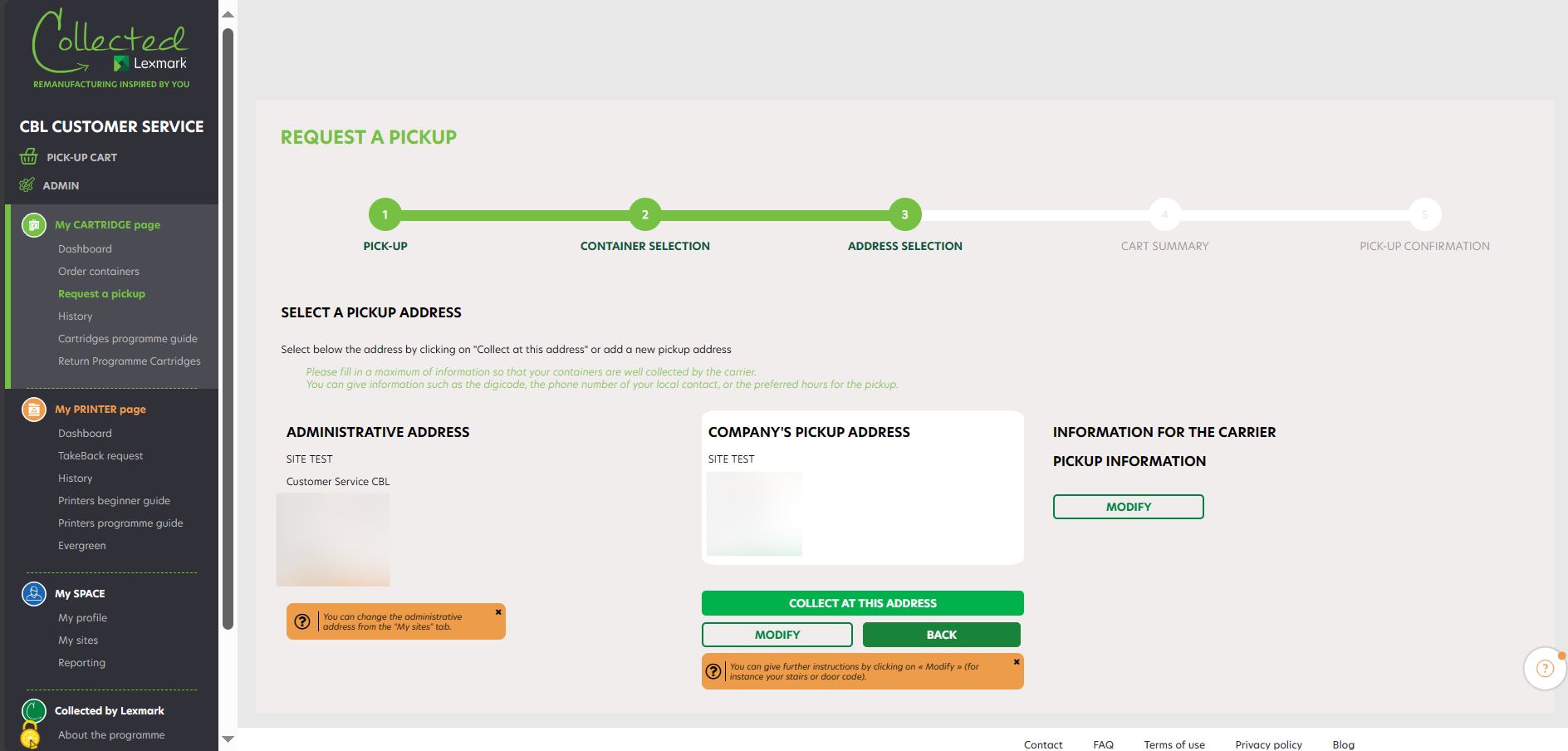
At step number 3, you access to your delivery details (company name, administrative address and company’s pickup address). You can modify the pickup address simply by clicking on « Modify », and go on with the process by clicking on « Collect at this address ».
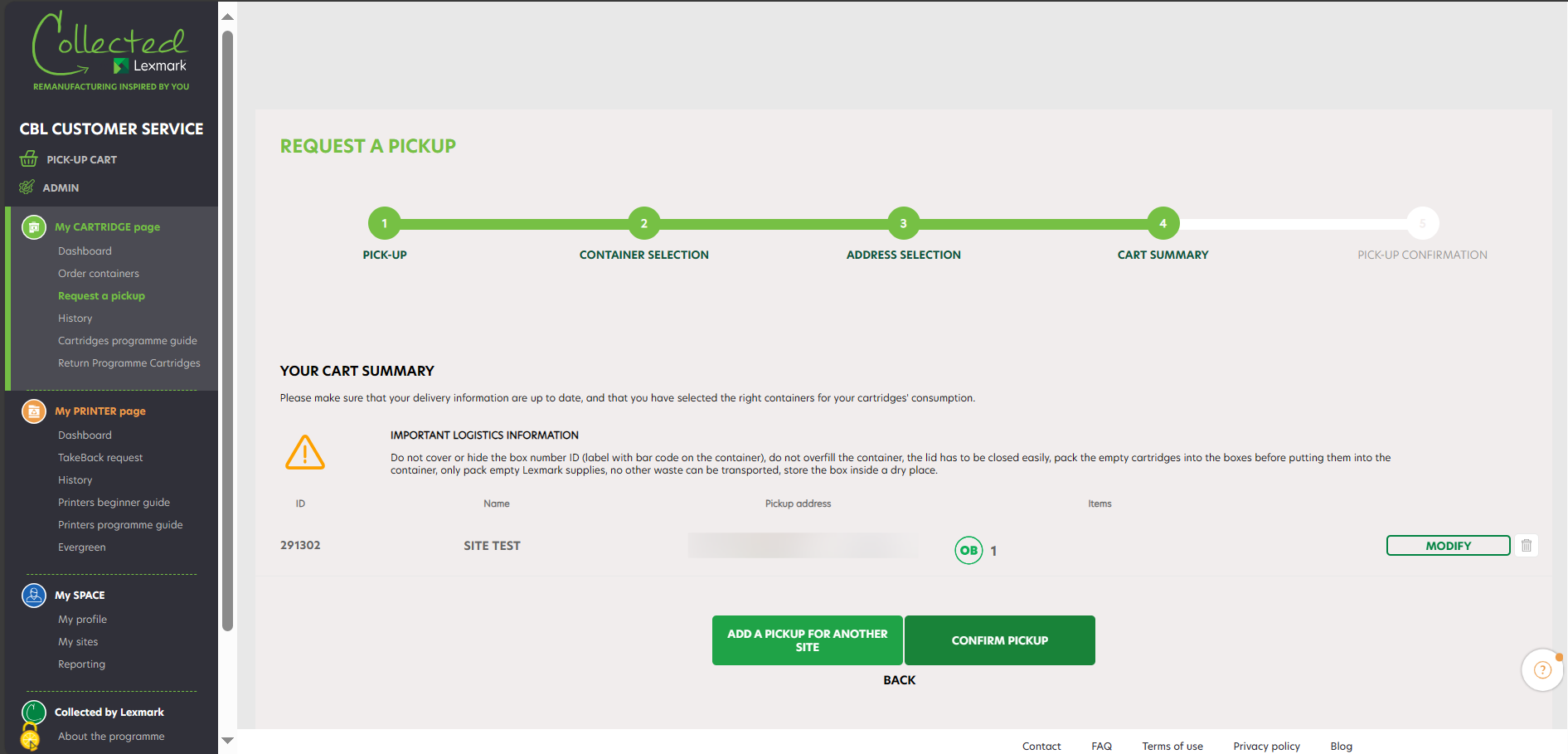
At step 4 you find your pickup request details (company name, number of containers to be picked up). You can modify your request or delete it by clicking on the bin. Once you’ve clicked on « Confirm pickup », your pickup request is sent. If you want to add another collection for another site, you can click on « ADD A PICKUP FOR ANOTHER SITE ».
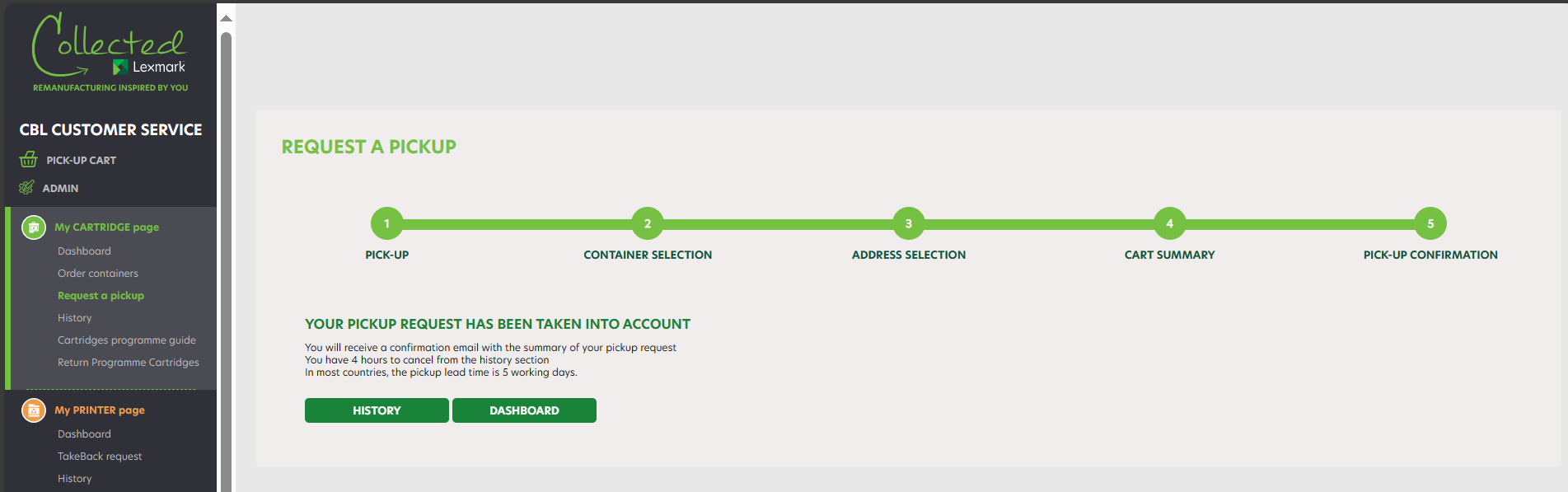
Once your pickup request is processed, you receive an order confirmation email with the details of your pickup within 24h. You can cancel your request within the next 4 hours on the History page.
During each step of this process you can go back to the previous step by clicking on the « Back » button. Moreover, if you go back to the first step, your order is still present on your cart. Therefore, you can resume your pickup at any time.
I'd like to know where is my order.
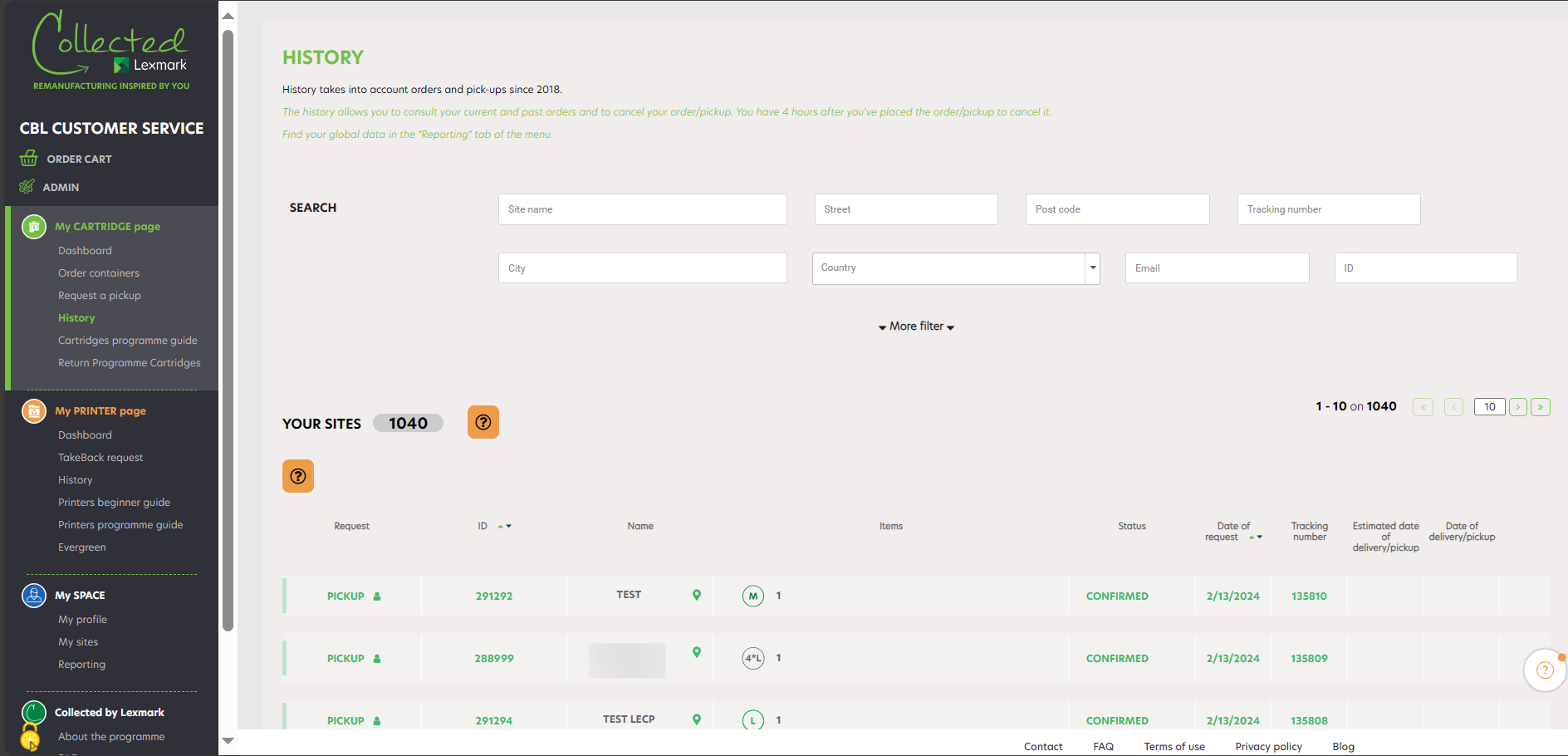
To track the progress of your order, click on « History ». Thanks to the search engine you can easily find a company by typing its name and its zipcode.
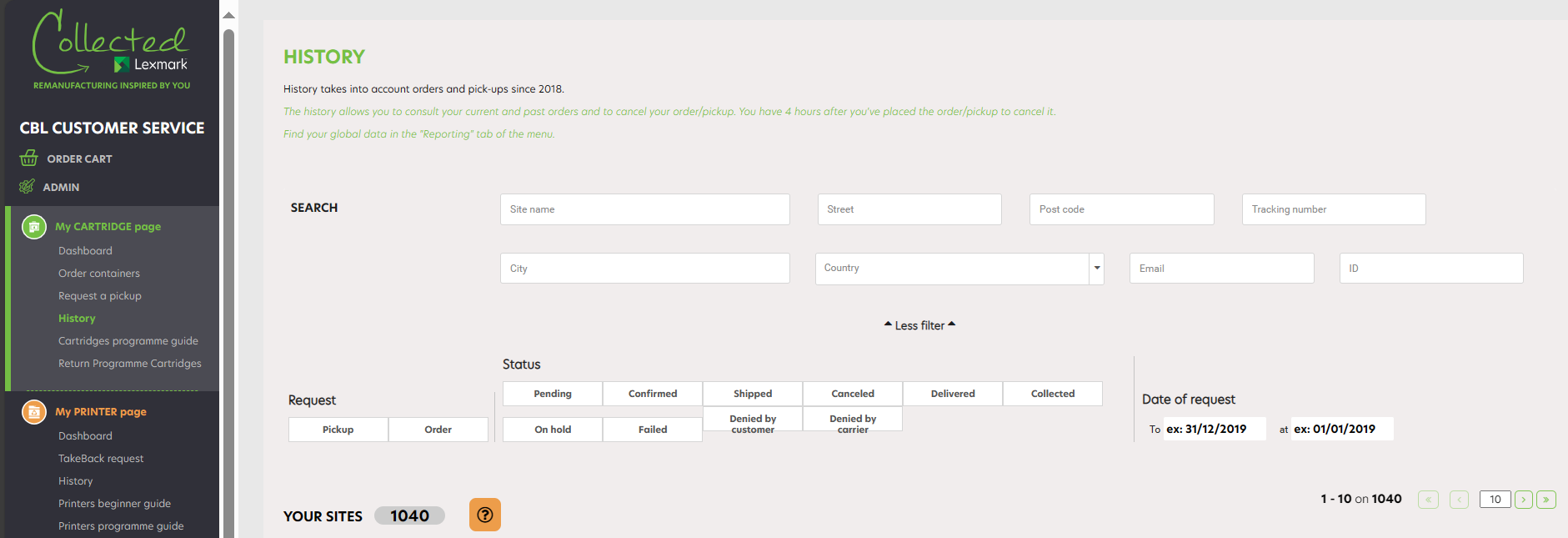
Advanced search allows you to easily find an order : select « Order » and your order status :
- « Pending » status :
the order has been registered by the Collected by Lexmark programme. - « Confirmed » status :
the order has been confirmed by the Collected by Lexmark programme and is under preparation; it will be delivered within 10 days. The tracking number of your order appears as soon as your order is confirmed. - « Shipped » status :
the order has been shipped. The delivery date is confirmed. - « Delivered » status :
the order has been received by your company. - « Canceled » status :
the order has been canceled. - “Denied for carrier reason” status :
The order has been canceled after several unsuccessful delivery attempts. knlux.reverselogistics@kuehne-nagel.com - Thanks to the search engine you can easily find a company by typing its name and its zipcode.
The order has been canceled due to the customer’s request. - “Failed” status :
the order has failed (for example, no one was on site to give the boxes, or there were internal issues that occurred on the carrier’s side, such as the box got damaged…). In this case, please contact our logistics team: knlux.reverselogistics@kuehne-nagel.com - « On hold » status :
the order has been unsuccessful, the customer receives an email and has 48 hours to contact the logistics team.
I'd like to know where is my pickup.
To track the progress of your pickup request, click on « History ». Thanks to the search engine you can easily find a company by typing its name and its zipcode.
The advanced search allows you to easily find a pickup request : select « Pickup », and your pickup status :
- « Pending » status :
the request has been registered by the Collected by Lexmark programme. - « Confirmed » status :
the pickup has been confirmed by the Collected by Lexmark programme and is under preparation; it will be processed within 5 days. The tracking number of your pickup appears as soon as your pickup is confirmed. - « Collected » status :
the pickup was done within your company. - « Canceled » status :
the pickup has been canceled. - “Denied for carrier reason” status :
The order has been canceled after several unsuccessful delivery attempts. - Thanks to the search engine you can easily find a company by typing its name and its zipcode.
The order has been canceled due to the customer’s request. - « Failed » status :
the pickup has failed – ( for example, no one was on site to give the boxes, or there were internal issues that occurred on the carrier’s side, such as the box got damaged…). In this case, please contact our logistics team : knlux.reverselogistics@kuehne-nagel.com - « On hold » status :
The pickup has been unsuccessful, the customer receives an email and has 14 days to contact the logistics team.
I'm trying to add a company to my sites, but I don't succeed doing it.
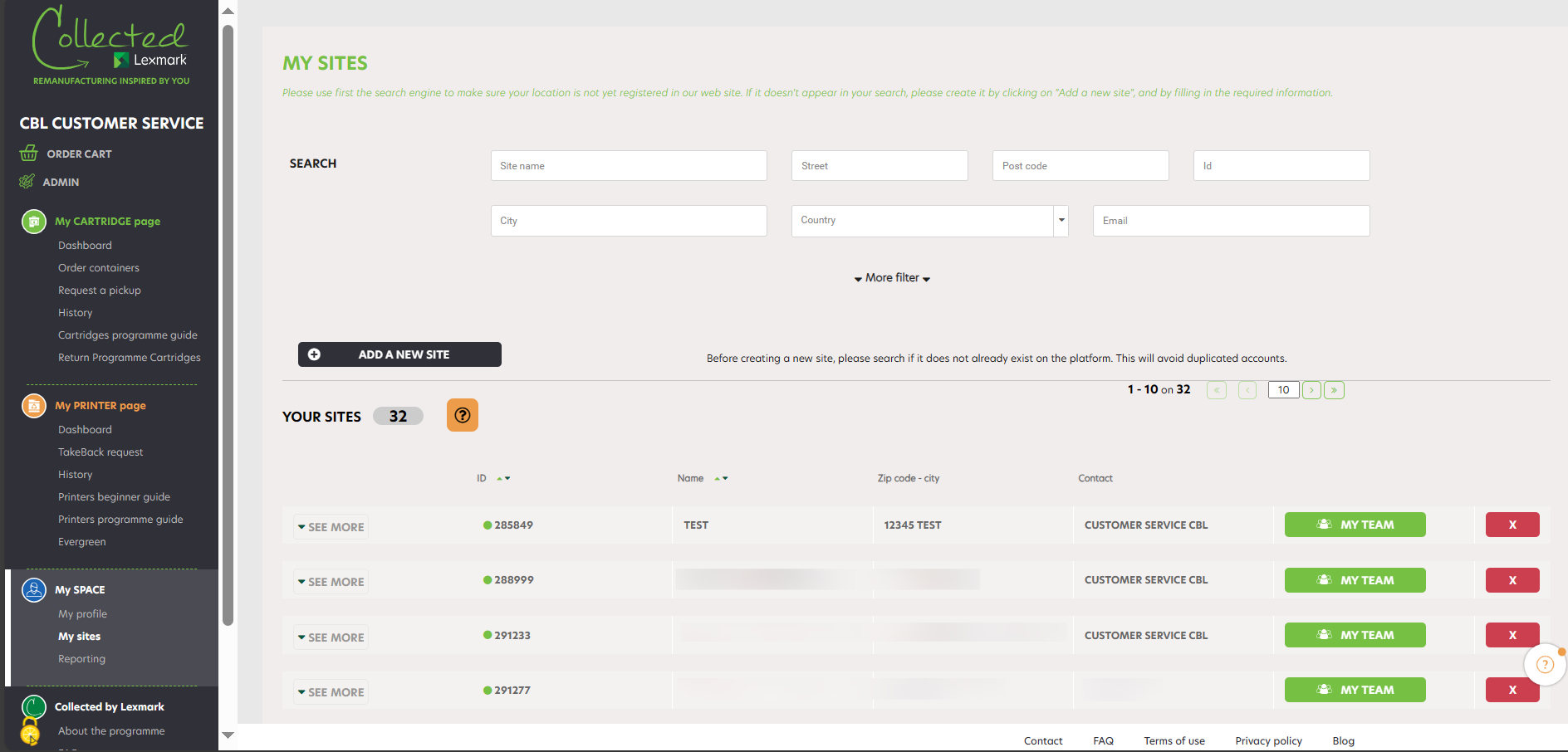
When you click on « My Sites », you have a display of all the companies associated with your account. You can delete a company by clicking on the red cross, or add a new company by clicking on « Add a new site ».
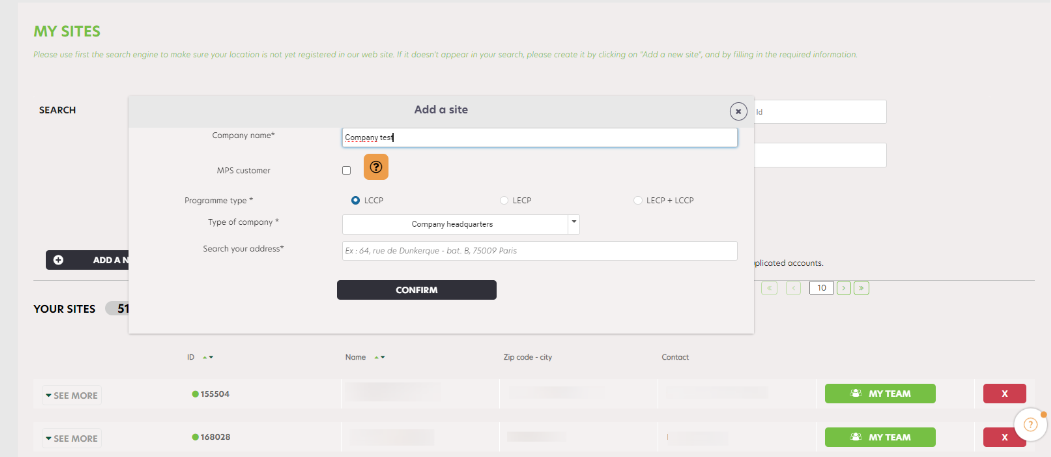
You only have to fill in the new company name, address. The Google API will automatically suggest addresses and if you select one, it will be automatically filled in.
FREQUENT QUESTIONS ABOUT THE COLLECTED BY LEXMARK PROGRAMME
What is the LECP programme?
The Collected by Lexmark programme has two different programmes : LCCP, for the collection of Cartridges and LECP for collection of Printers.
LECP is a Lexmark Printers Collection Programme. It facilitates the collection management of the printers at their end of life and helps their remanufacturing before they are fully recycled.
Returned devices follows one of two clear routes:
Local Recycling
Devices with no reuse potential are processed locally in line with applicable regulations, which can help reduce transport distances, associated emissions, and support compliant end-of-life handling near the point of return.
Reuse (Remanufacture & Parts Recovery)
Devices with reuse potential are sent to our European central operations hub, where they are either remanufactured to be part of our Lexmark Evergreen offering or dismantled to recover reusable components. Both activities form part of our circular handling approach.
This process enables earlier routing and keeps reusable materials in use for longer through remanufacturing or parts recovery. It provides a clear visibility of each device’s next stage and directs it to the appropriate route, without changing your return experience.
The Collected by Lexmark programme enhances all stakeholders corporate social responsability’s strategy and helps the participation of our customers in the circular economy.
What are the conditions to register to the programme?
- To be a private or public company and to have a national authentication number
- To be a company located in Europe
- To share with Lexmark a contact representing the company that will manage the programme
I forgot my password. What should I do?
If your company is already registered and if you have not yet activated your password, or if you have forgotten your password, click on « Forgot your password ? » on the homepage to be redirected to the password reset form.
After having entered your email address, you will receive by email the link to set a new password.
The link will be active for the next 24 hours. Check that the email is not in your spam, and then try the password reset again. Should you not received any email from us, contact us via the contact form.
How can I contact Lexmark?
If you can’t find the answer to your question in this FAQ, we invite you to contact us via the dedicated contact form.
How to track the progress of my Takeback request?
Check that the email is not in your spam. After 24H, should you not receive any email, please contact us via the contact form.
What is the difference between a Takeback request and a Buyback request?
In case the owner of the printers is Lexmark, it is Takeback.
In case the owner of the printers is not Lexmark, it is a Buyback.
The owner of the printers might decide to give the printers to Lexmark free of charge. In this case the transaction is a Takeback, not a Buyback.
THE FAQ HEADINGS
« COLLECTED BY LEXMARK »
CONTAINER PROGRAMME
To register
To log in
My account
Ordering a container
Ask for a pickup
Specific programmes
“Collected by lexmark” container programme for individuals
Reporting page
Lexmark offers LCCP to support the circular economy by providing customers with free and easy methods to responsibly recycle and reuse empty Lexmark supplies. LCCP also supports the agreement terms associated with the printer and Return program supplies.
Collected by Lexmark is the web platform that enables medium and large companies to participate into LCCP (consumption from 10 cartridges per year). It’s free of charge and facilitates the collection management of the cartridges at their end of life and helps their remanufacturing before they are fully recycled. The Collected by Lexmark programme enhances all stakeholders corporate social responsibility’s strategy and helps the participation of our customers in the circular economy.
The Collected by Lexmark platform can be used by businesses that want to be part of a circular economy approach by reusing / recycling used Lexmark cartridges. By participating in this programme, the company is committed to :
- Return the eligible cartridges (as defined in the Terms of Use) to Lexmark for recovery in accordance with these Terms and Conditions.
- Inform the people within their company (who manage used consumables) of their participation in this programme.
- Comply with regulatory requirements for WEEE (Waste from Electrical and Electronic Equipment) for any cartridge that would not be returned to Lexmark.
Eligibility: Lexmark cannot assume responsibility for any other type of waste. Any disposal of cartridges other than Lexmark branded supplies (including third party cartridges or non-Lexmark supplies) is at the client’s own expense and can lead to immediate contract’s termination.
- To be a private or public company and to have a national authentication number
- To be a company located in Europe
- To share with Lexmark a contact representing the company that will manage the programme
- To use Lexmark or eligible cartridges (as defined in the Terms of Use)
- To use the containers to pickup the cartridges
Collected by Lexmark accepts a variety of Lexmark products, beyond simple cartridges. Click here to download the products types.
Your collection boxes should contain Lexmark branded cartridges only.
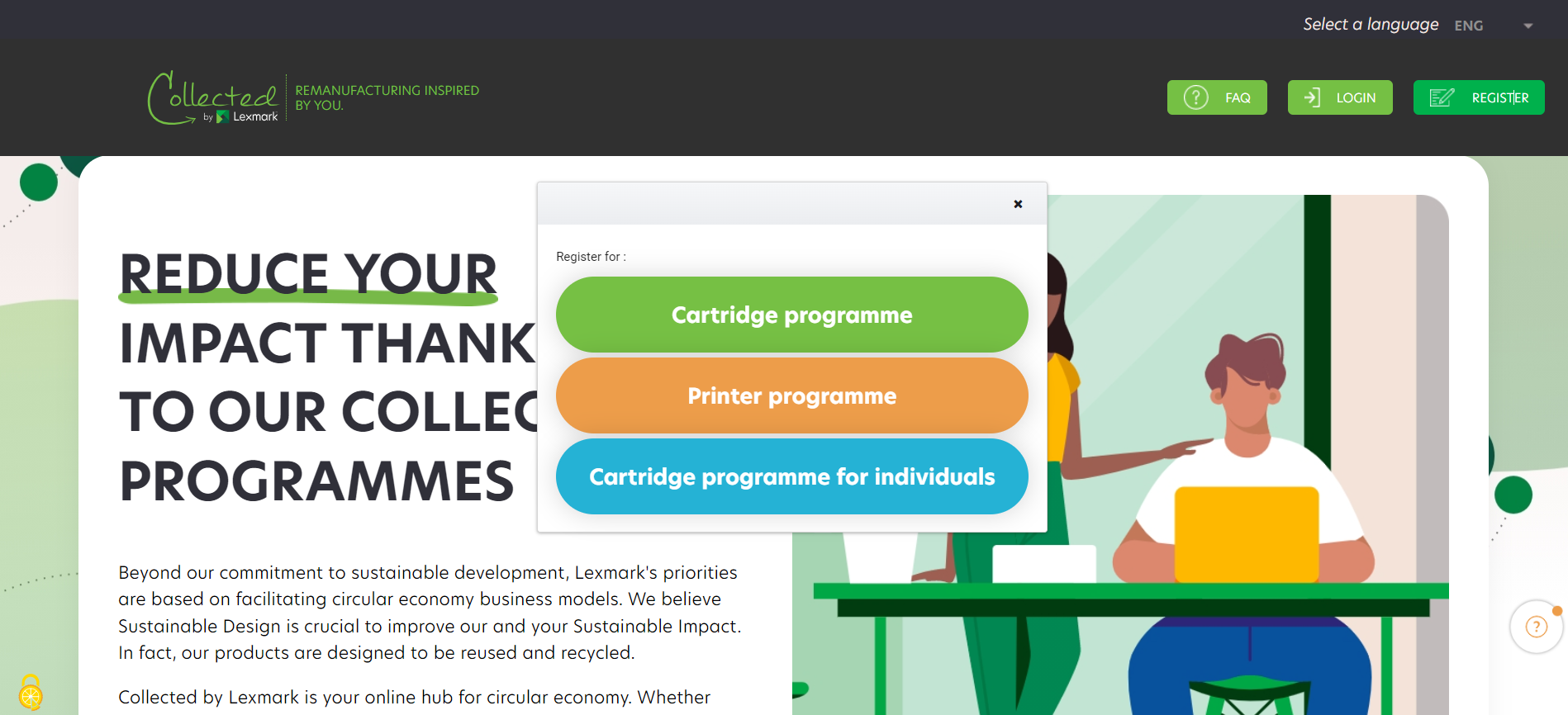
To register for the Collected by Lexmark programme, visit www.collectedbylexmark.com and click on « Create new account ». You will then be redirected to the registration form. Be sure to enter a professional email address so that your registration is validated.
When registering an account, you can only add a single location. You will need to complete the below form with your personal details and the company’s information. When filling in the company’s address, google API automatically suggests addresses from its database (auto-completion process).
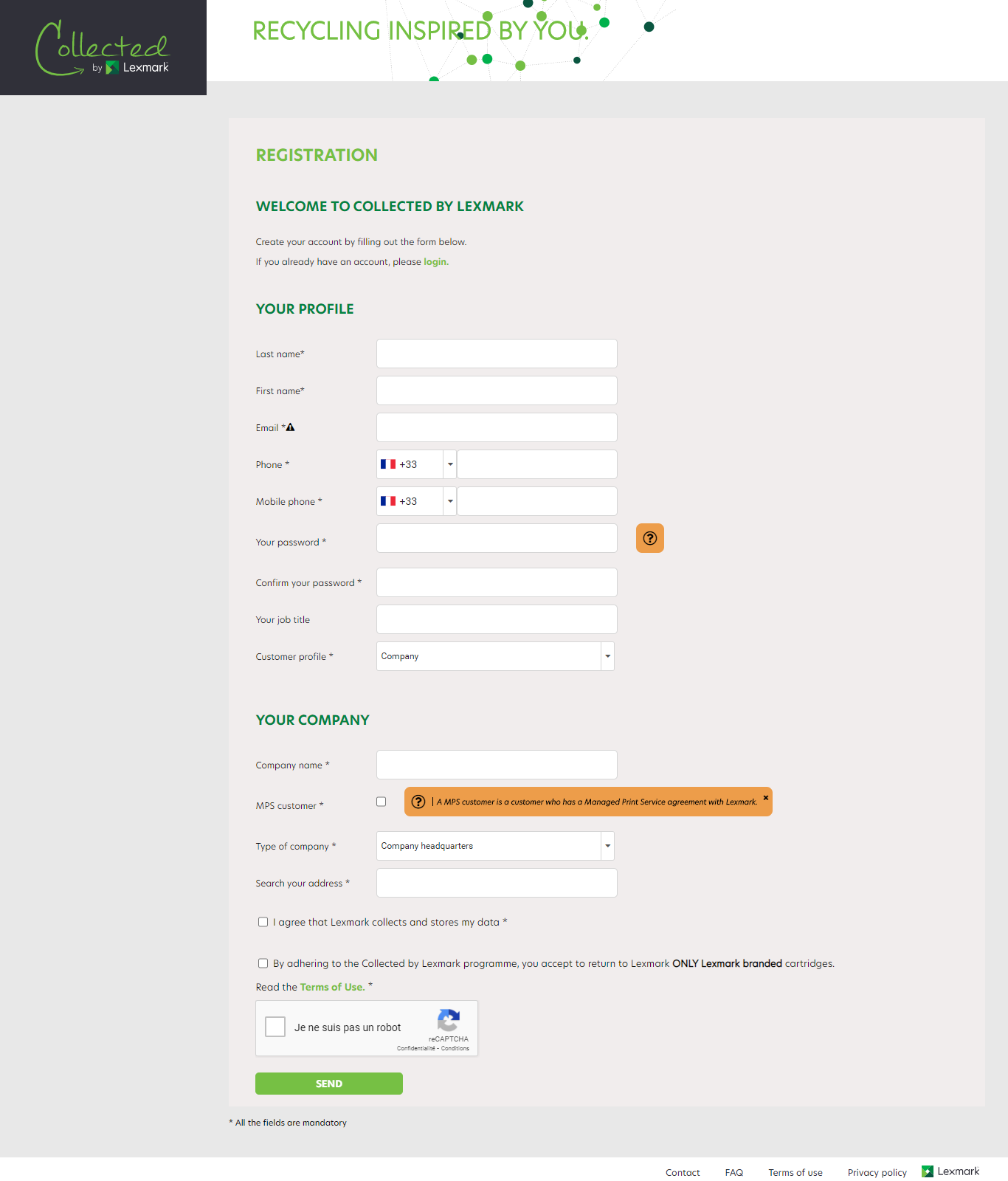
If your company is already enrolled in the programme, you will not be able to register it a second time. We will send you the contact of the person that is already registered in your company.
Nota bene : to add a new location on top of existing ones or update a company profile, do not use the sign in « Create new account » button. You need to connect and go to my sites.
If you have multiple sites to register, please ask for the excel file mass upload template through your Lexmark sales representative or through the contact form.
Please check that :
- You are eligible to the programme
- The email address entered is a professional email address
- You have filled all the compulsory fields
If your company is already registered in the programme, we will send you the contact of the person that is already registered in your company. If this person is no longer working in your company or has changed role, please contact us via the contact form with your e-mail address to become the main contact.
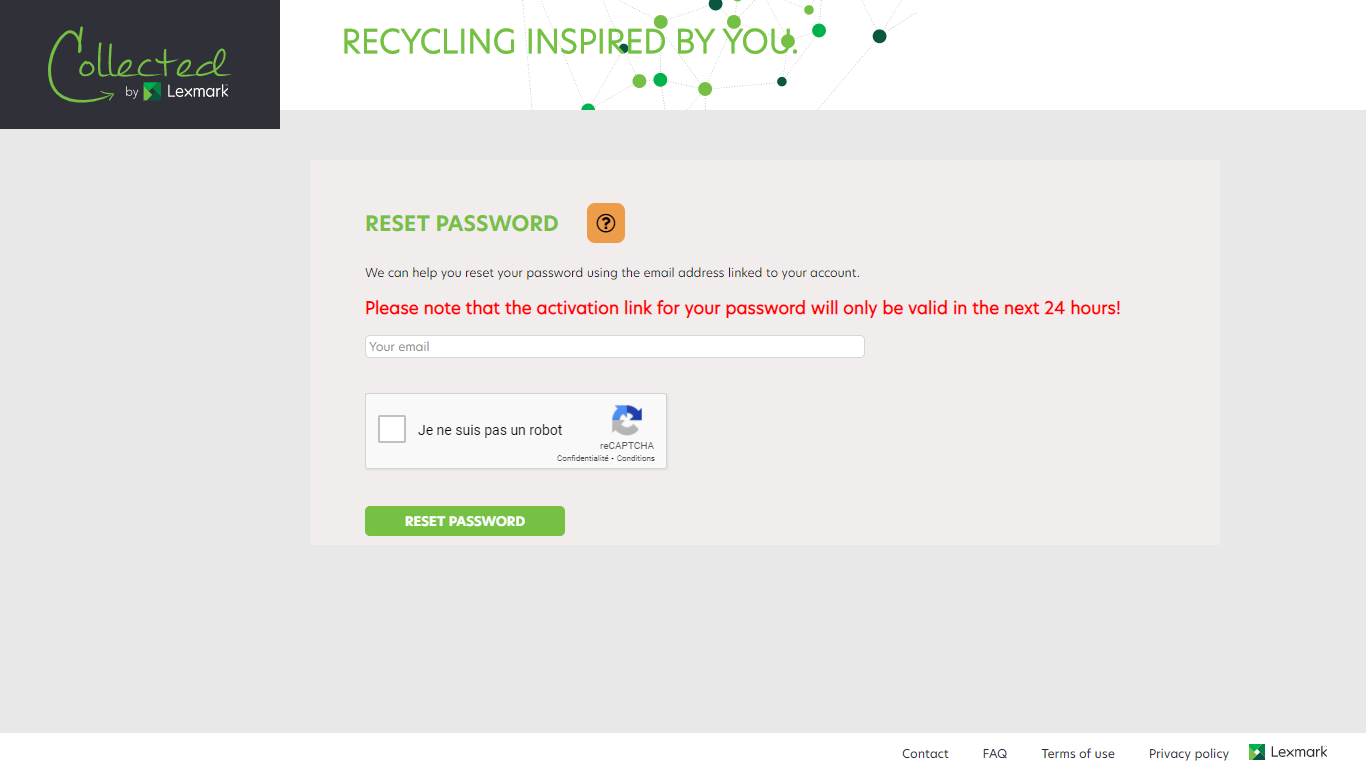
If your company is already registered and if you have not yet activated your password, or if you have forgotten your password, click on « Forgot your password ? » on the homepage to be redirected to the password reset form. After having entered your email address, you will receive by email the link to set a new password. The link will be active for the next 24 hours. Think about checking your spams.
To change your password, go to « My profile » section of your account. You can change your password there.
To log in to your Collected by Lexmark account, verify that the entered email address is correct, as well as the associated password.
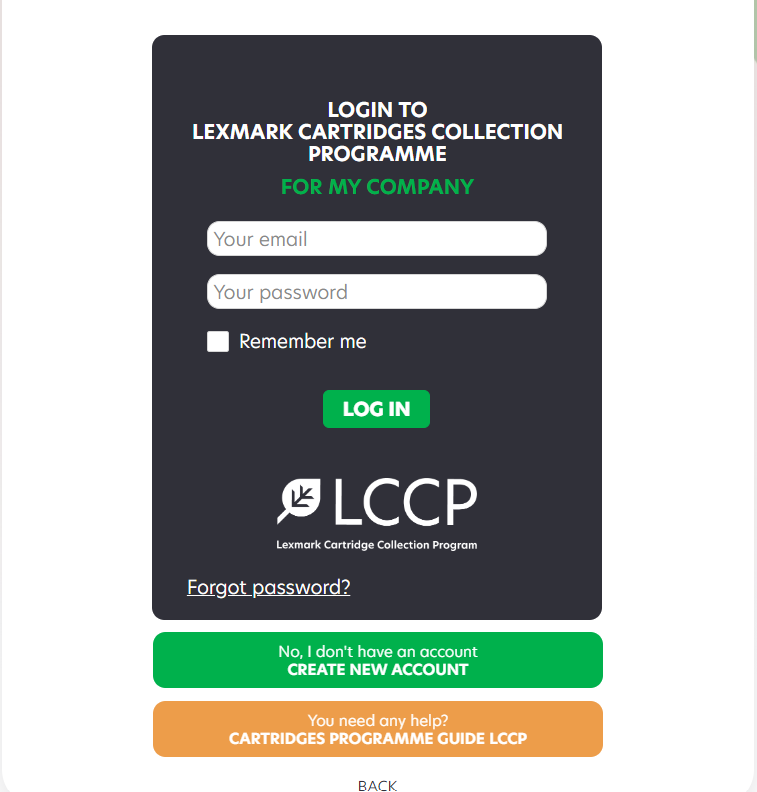
To log in to your Collected by Lexmark account, enter the email address and password you chose when registering to the programme, then click on « LOG IN ».
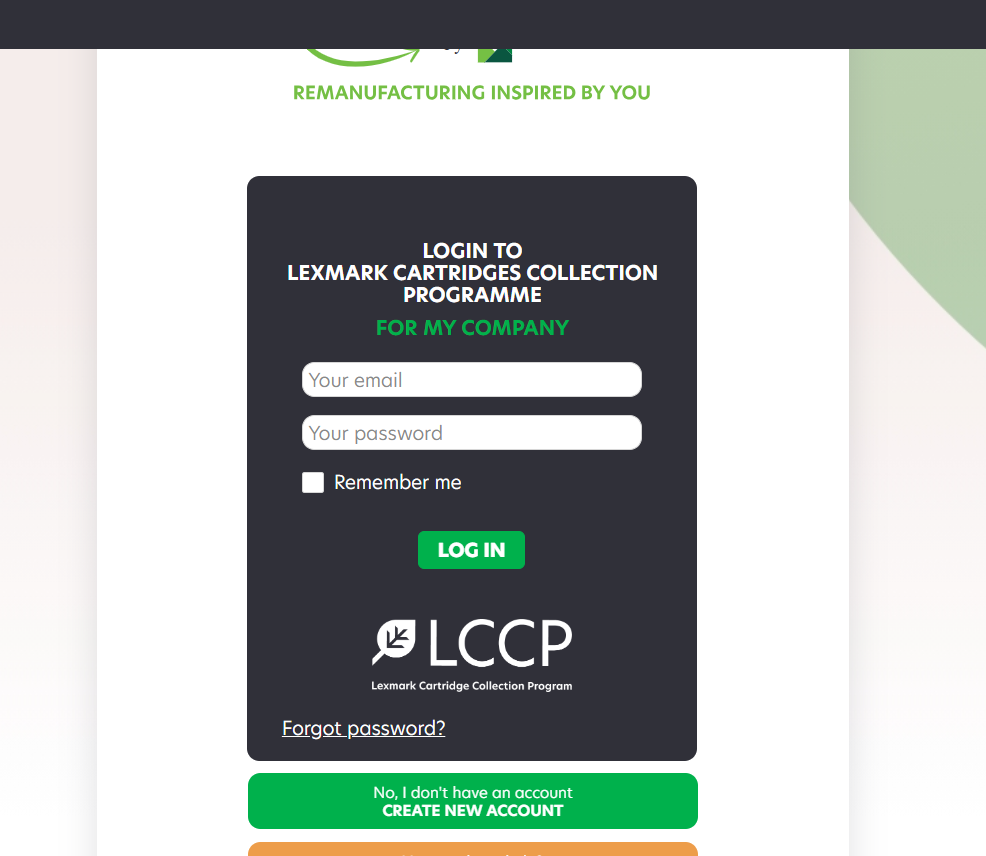
When adding a new location on top of existing ones or updating a company profile, do not use the sign in button. You need to connect to your account and go to my sites once connected.
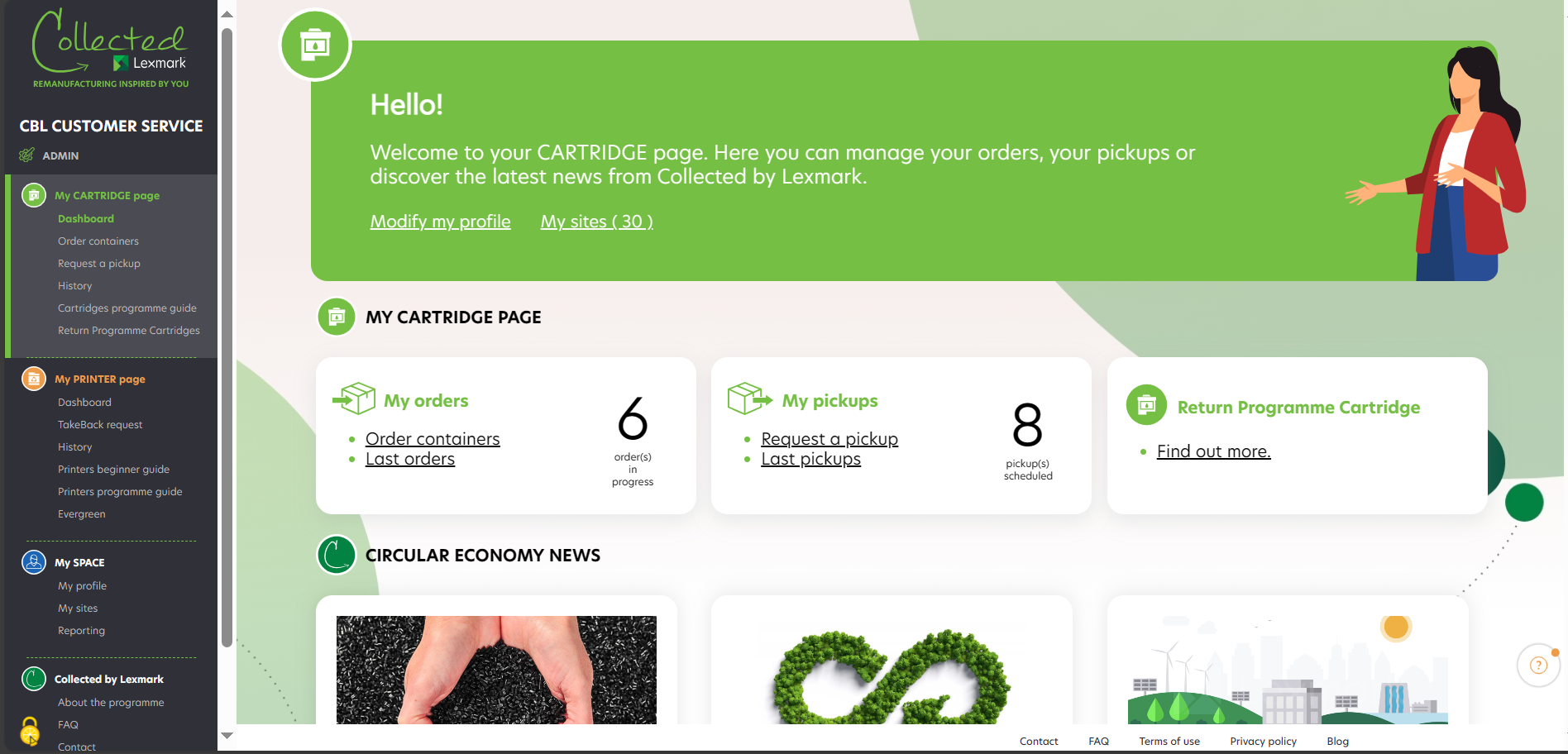
Once you’re connected, you have access to your dashboard. The menu, on the left, helps you to navigate on the platform.
Check that the email is not in your spam, and then try the password reset again. Should you not received any email from us, contact us via the contact form.
Check that the email is not in your spam. After 24H, should you not receive any email, please contact us via the contact form.
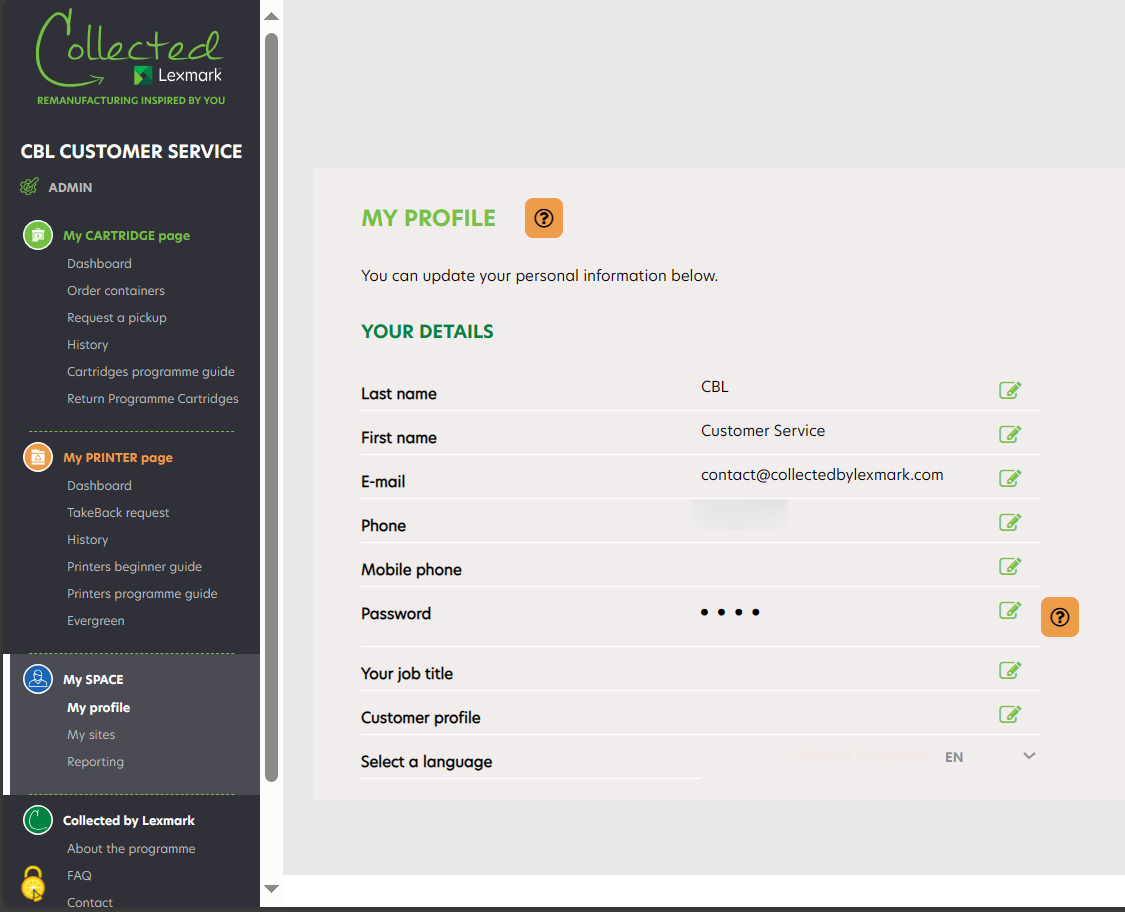
To change your personal information, go to « My profile » section of your account. You can change the following information :
- Name
- First Name
- Phone Number (landline and mobile)
- Password
To make the changes, you need to click on the green icon. The changes will be saved automatically. The email being the log in unique ID, it can only be modified by an admin, please contact us in case you need to change it.
Did your company move ? If you want to update your company’s new address, we invite you to contact us through the contact form.
Lexmark understands the importance of respecting the personal information that is processed and we are committed to protecting the data you entrust to us. For more information, read our Privacy Policy.
If you can’t find the answer to your question in this FAQ, we invite you to contact us via the dedicated contact form.
To order new containers for your company, click on « Order containers ». The list of your companies is displayed. Thanks to the search engine you can easily find a company by typing its name and its zipcode.
You can see the number of each box type that you have in stock (it depends on the country allowance). In case you see two figures such as 1+1, it means that you have 1 box in stock and 1 box in pending order in your cart.
Select the chosen company and on the right side, by clicking on « Select this site ». You can check the information about your companies by clicking on the button « See more » on the left.
|
A container order is already in progress for this company, you will not be able to order new ones until you’re received your order. |
After clicking on « Select this site », you reach the second step of the process where you can choose the size and quantity of containers you need to have delivered. Click on « Add to your shopping cart » to go to the next step. Your order is placed in the shopping cart. You can see at which step you are in the order process thanks to the advanced progression bar.
At step 3, you find your delivery details (company name, administrative address and company’s delivery address). You can modify the delivery address simply by clicking on « Modify », and go on with the process by clicking on « Deliver to this address ».
At step 4, you find your order details (company name, number of containers to be delivered). You can modify by clicking on « MODIFY » or delete the request by clicking on the bin. Once you click on « Confirm order », your order request is sent. If you want to add another order for another site, you can click on « ADD AN ORDER FOR ANOTHER SITE ».
Once your order is processed, you receive an order confirmation email with the details of your order within 24h. You can cancel your order within the next 4 hours on the history page.
At any step of this process you can go back to the previous step by clicking on the « Back » button . Moreover, if you go back to the first step, your order is still registered in your cart. Therefore, you can resume it at any time.
You can order up to 5 containers of each size, ie: up to 20 containers per order.
In the approach of circular economy and respect of the environment, we invite you to order the size and the quantity of containers adapted to your needs and to send back full containers.
The Collected by Lexmark programme allows you to order up to four different types of containers, each adapted to the annual consumption of cartridges of your company. contact form.
UPDATE: M&L boxes will no longer be active for ordering in certain countries. Please refer to the blog post for more information. Once M&L boxes have run out, they will be replaced by standard format boxes: OB and batch4OB, which you can order and collect freely.
- Large container : 60X40X83 cm. It can hold 25 cartridges on average. Its maximum weight is 20 kg.
- Office Box: 60X40X70 cm. It can hold up to 20 cartridges on average. Its maximum weight is 20 kg.
- Batch of 4 Office Box: 120X80X40 cm. We encourage users with high usage to order 4 at a time in order to save on the ecological footprint. When the 4 are full, you can request for their pickup all together. It can hold up to 80 (4×20) cartridges on average. Their combined maximum weight is 80 kg.
Under specific conditions:
- Small container – upon specific conditions: 40X40X45 cm. It can hold 5 cartridges on average. Its maximum weight is 15 kg.
- XL container – upon specific conditions : 120X80X75 cm. It can hold 40 cartridges on average. Its maximum weight is 100 kg. It is delivered with attached carton pallet.
If you wish to benefit from this type of contract (S/XL), you must contact your Lexmark representative for approval.
After 24H you should have received an email. If this is not the case, please contact us via the contact form.
To track the progress of your order, click on « History ». Thanks to the search engine you can easily find a company by typing its name and its zipcode.
Advanced search allows you to easily find an order : select « Order » and your order status :
- « Pending » status :
the order has been registered by the Collected by Lexmark programme. - « Confirmed » status :
the order has been confirmed by the Collected by Lexmark programme and is under preparation; it will be delivered within 10 working days. The tracking number of your order appears as soon as your order is confirmed. - « Shipped » status :
the order has been shipped. The delivery date is confirmed. - « Delivered » status :
the order has been received by your company. - « Canceled » status :
the order has been canceled. - “Denied for carrier reason” status :
The order has been canceled after several unsuccessful delivery attempts. knlux.reverselogistics@kuehne-nagel.com - Thanks to the search engine you can easily find a company by typing its name and its zipcode.
The order has been canceled due to the customer’s request. - “Failed” status :
the order has failed (for example, no one was on site to give the boxes, or there were internal issues that occurred on the carrier’s side, such as the box got damaged…). In this case, please contact our logistics team: knlux.reverselogistics@kuehne-nagel.com - « On hold » status :
the order has been unsuccessful, the customer receives an email and has 48 hours to contact the logistics team.
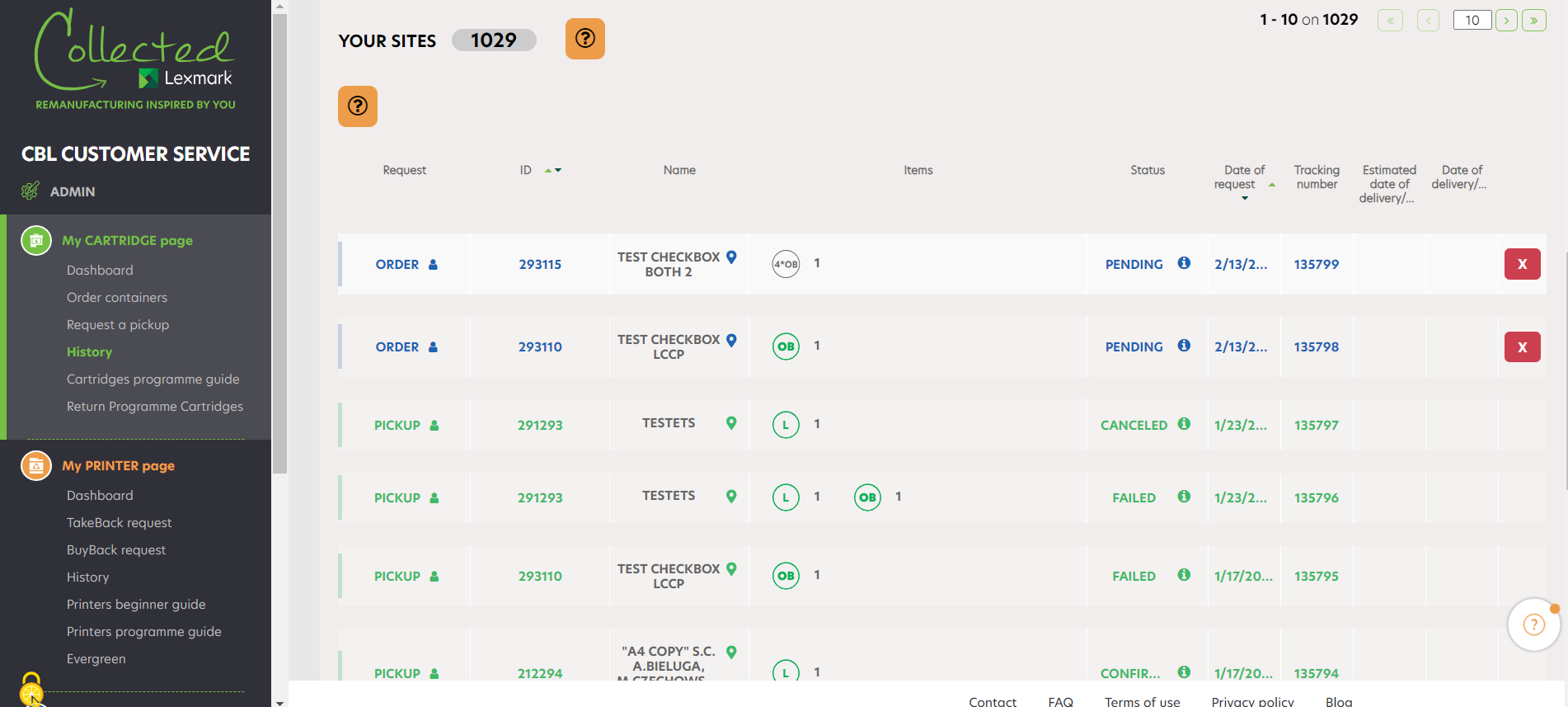
You can cancel any container order having the « Pending » status, in the next 4 hours after you have placed your order, by clicking on the red cross. You will receive an email confirmation of cancellation.
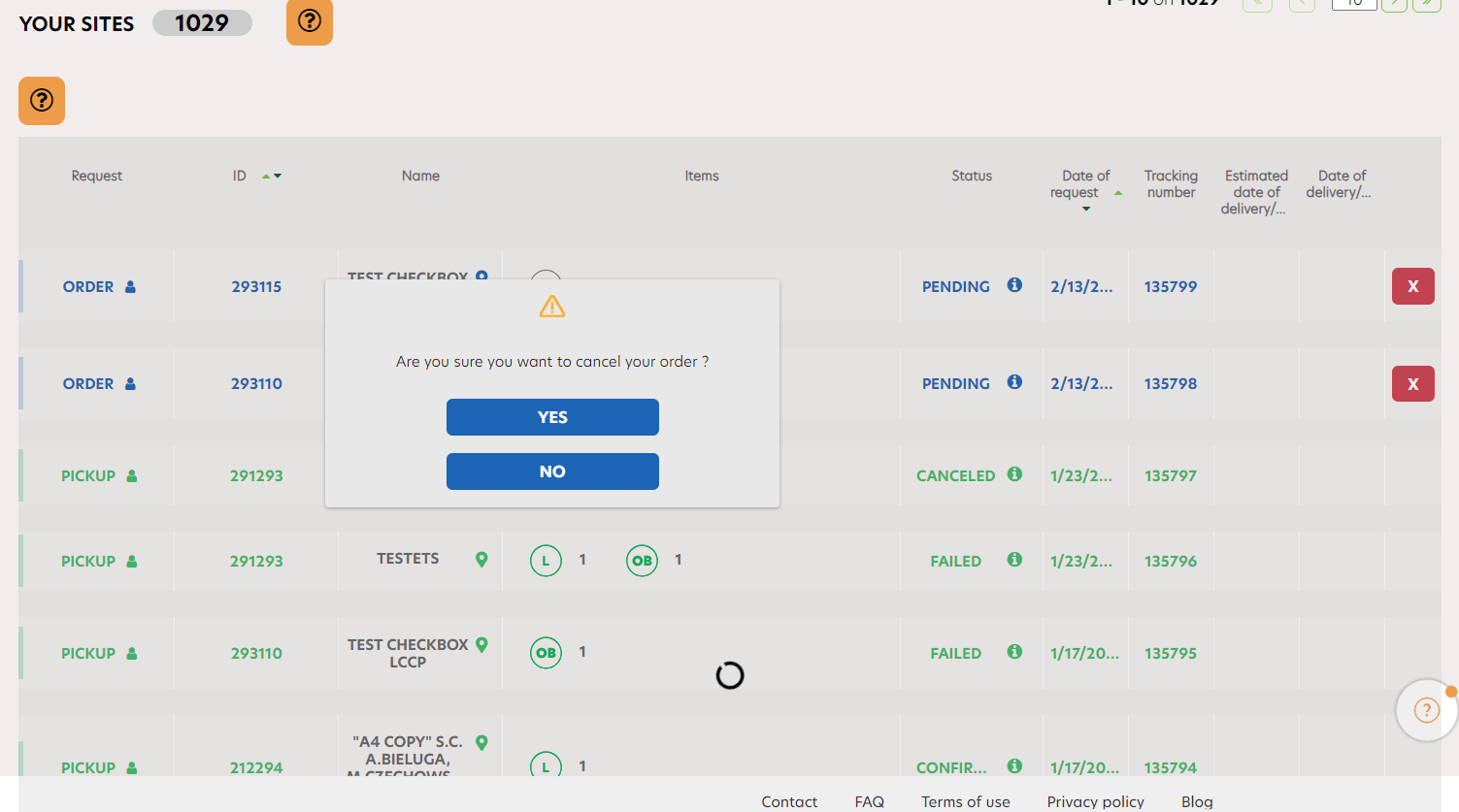
To set up, modify or complete your shipping information, click on « My sites ». The list of your companies is displayed. Thanks to the search engine you can easily find a company by typing its name and its zipcode.
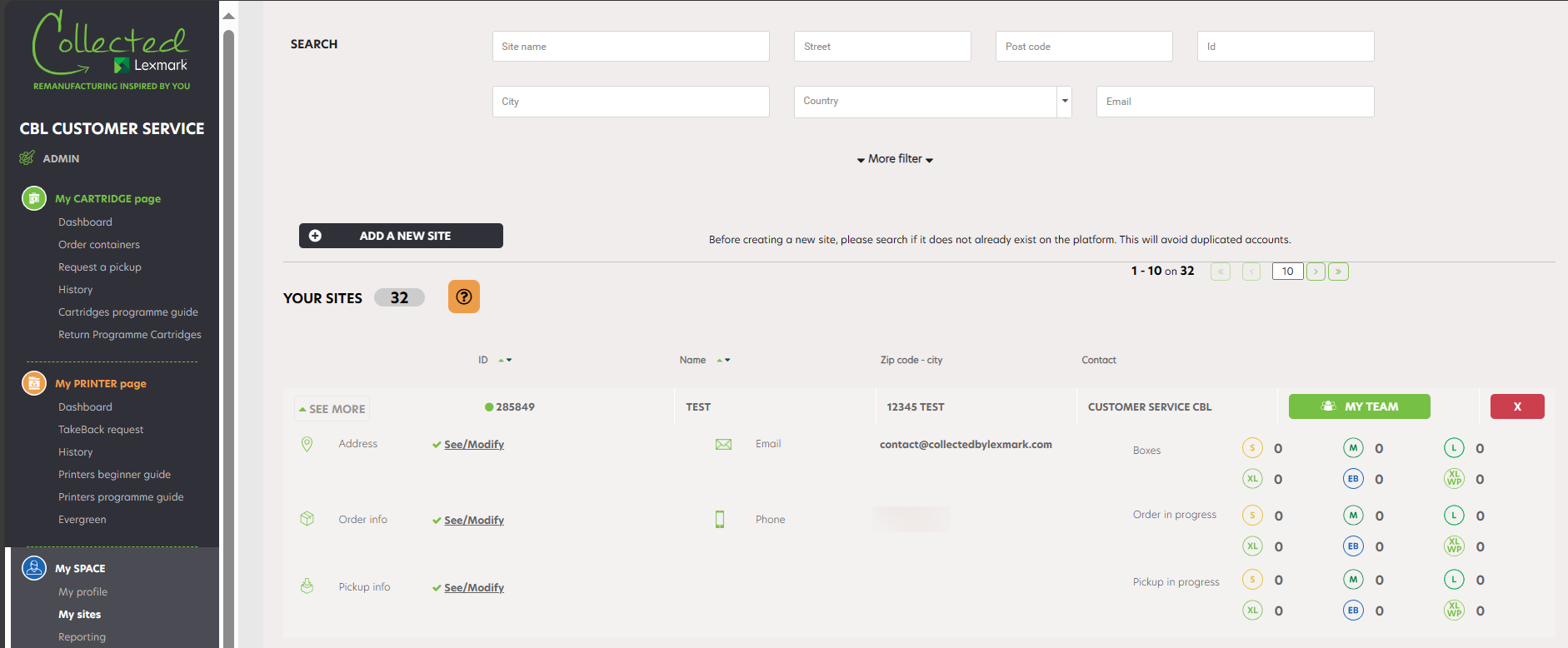
Click on « See more » on the left of your company name to find all the information regarding your company. Then click on : « See/modify » next to « Order Info ».
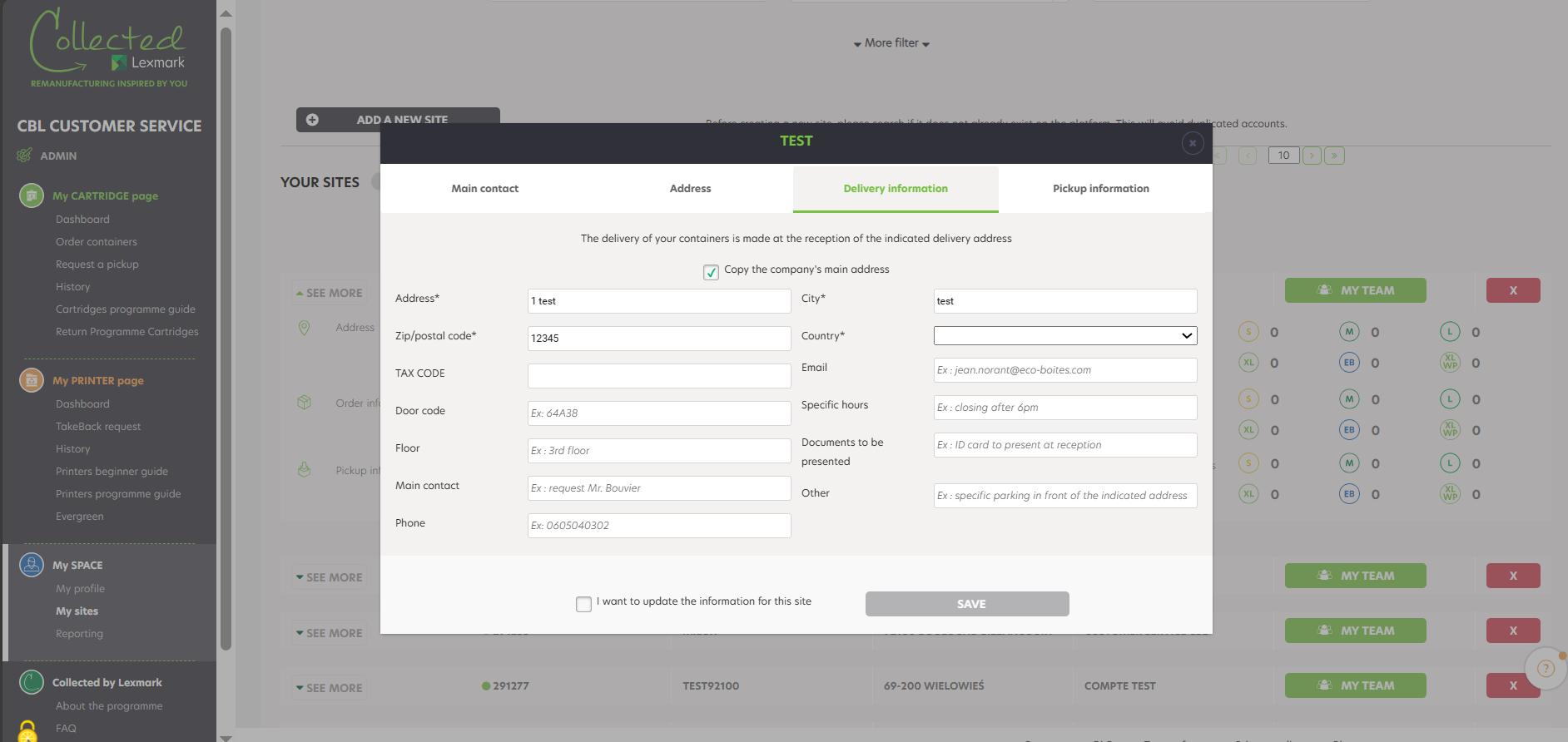
A window appears : You can now update your delivery information (if different from your registered company profile) : the door code, floor, contact name and details of the person receiving the containers, opening hours, specific information…
Tick the box « I want to update the information for this site » before click on « Save ». Your delivery information is automatically updated.
If you can’t order containers, we invite you to :
- Check that an order is not already on going for your site. In this case, you’ll be able to place an order when your current order will be received within your company.
However, should this situation continue, please contact us via the contact form.
To request a container pickup for your company, click on « Request a pickup ». The list of your companies is displayed. Thanks to the search engine, you can easily find a company by typing its name and its zipcode.
Select the chosen company by clicking on « Select this site ». You can check the information about your companies by clicking on the button « See more » on the left. You might see one icon :
|
A pickup order is already in progress for this company, you will not be able to request a new one until your collection has been done. |
After clicking on « Select this site », you reach on the second step of the process where you can choose the size and quantity of containers that have to be collected (5 containers per size and per collection maximum). On the top you can see your company information. Click on « Confirm Pickup » to go to the next step. You can see at which step of the pickup process you are with the progression bar.
You can modify or delete the request at the last confirmation stage.
At step number 3, you access to your delivery details (company name, administrative address and company’s pickup address). You can modify the pickup address simply by clicking on « Modify », and go on with the process by clicking on « Collect at this address ».
At step 4 you find your pickup request details (company name, number of containers to be picked up). You can modify your request or delete it by clicking on the bin. Once you’ve clicked on « Confirm pickup », your pickup request is sent. If you want to add another collection for another site, you can click on « ADD A PICKUP FOR ANOTHER SITE ».
Once your pickup request is processed, you receive an order confirmation email with the details of your pickup within 24h. You cancel your request within the next 4 hours on the History page.
During each step of this process you can go back to the previous step by clicking on the « Back » button. Moreover, if you go back to the first step, your order is still present on your cart. Therefore, you can resume your pickup at any time.
As soon as a container is full, you can request a pickup by Collected by Lexmark.
Be careful : if a pickup request is already in progress for your company, you will not be able to make a new one.
Check that the email is not in your spam. After 24H, should you not receive any email, please contact us via the contact form.
To track the progress of your pickup request, click on « History ». Thanks to the search engine you can easily find a company by typing its name and its zipcode.
The advanced search allows you to easily find a pickup request : select « Pickup », and your pickup status :
- « Pending » status :
the request has been registered by the Collected by Lexmark programme. - « Confirmed » status :
the pickup has been confirmed by the Collected by Lexmark programme and is under preparation; it will be processed within 5 working days. The tracking number of your pickup appears as soon as your pickup is confirmed. - « Collected » status :
the pickup was done within your company. - « Canceled » status :
the pickup has been canceled. - “Denied for carrier reason” status :
The order has been canceled after several unsuccessful delivery attempts. - Thanks to the search engine you can easily find a company by typing its name and its zipcode.
The order has been canceled due to the customer’s request. - « Failed » status :
the pickup has failed – ( for example, no one was on site to give the boxes, or there were internal issues that occurred on the carrier’s side, such as the box got damaged…). In this case, please contact our logistics team : knlux.reverselogistics@kuehne-nagel.com - « On hold » status :
The pickup has been unsuccessful, the customer receives an email and has 14 days to contact the logistics team.
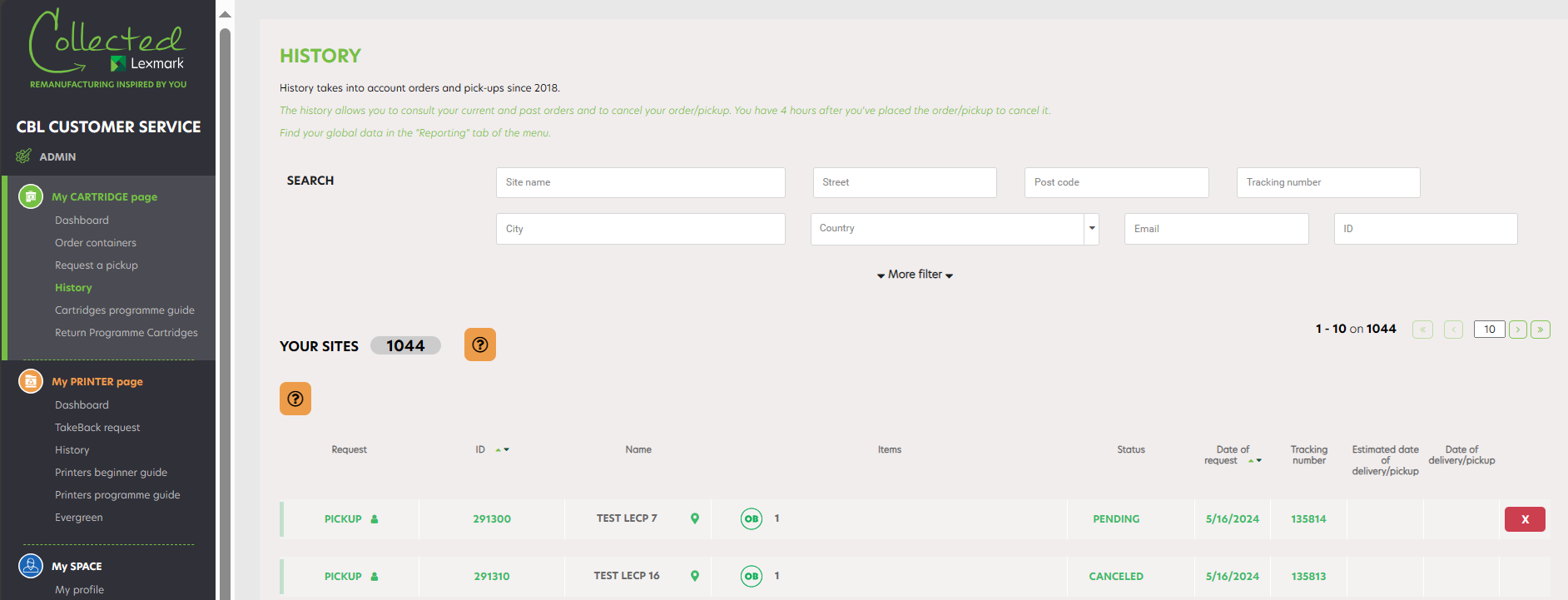
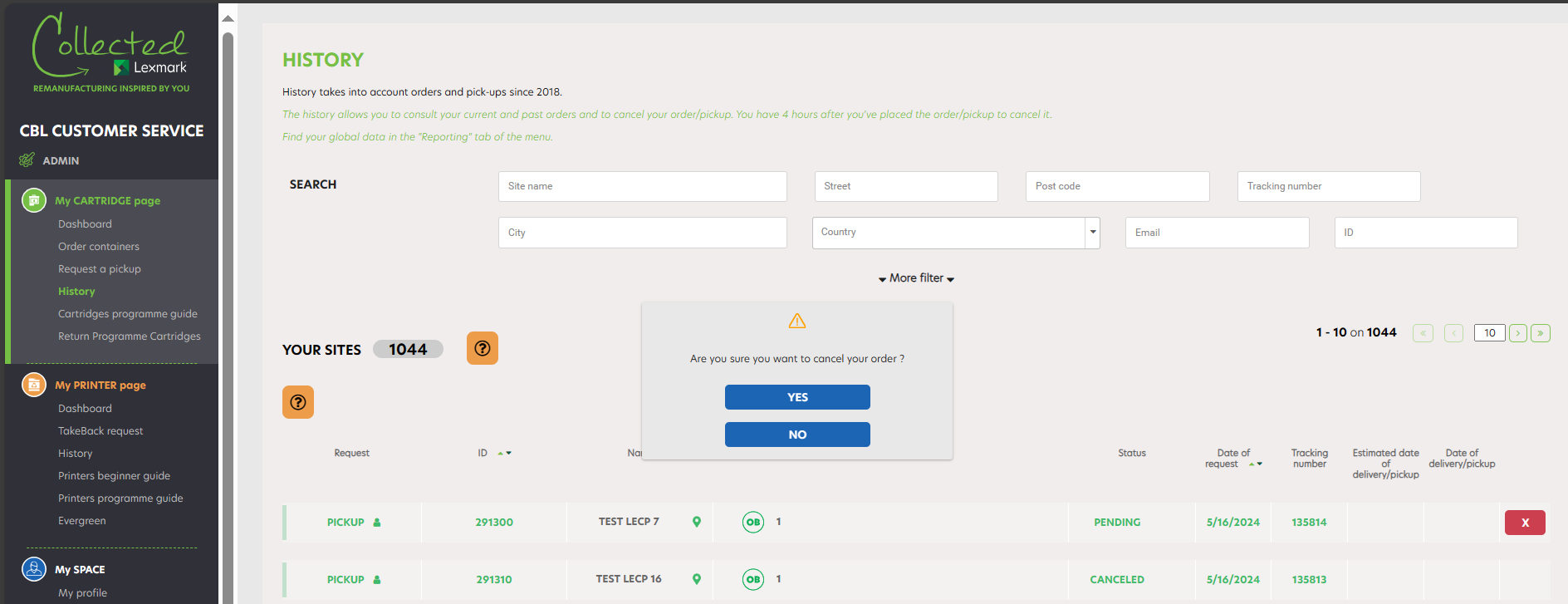
You can cancel a pickup request if your pickup has the « Pending » status. Click on « History » : your latest actions appear first. You can cancel any container request having the « Pending » status, in the next 4 hours after you’ve done your request. To do so, click on the red cross. A confirmation window appears : click on « Yes » . You will receive an email confirmation of cancellation.
To set up, modify or complete your pickup information, click on « My sites ». The list of your companies is displayed. Thanks to the search engine you can easily find a company by typing its name and its zipcode.
Click on « See more » on the left of your company name to find all the information regarding your company. Thanks to the search engine you can easily find a company by typing its name and its zip code. Then click on : « See/modify » next to « Pickup Info ».
Open the pulldown menu of your company : you find all the information regarding your company.
click on « Pickup infos »: « See/modify ».
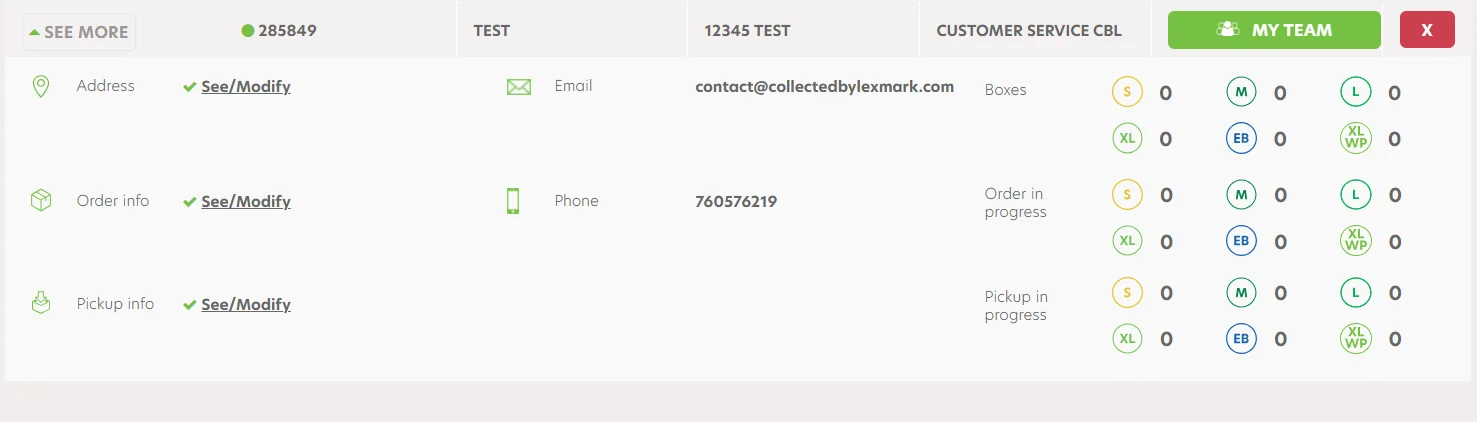
A window appears : click on the « Pickup information » tab. You can update your pickup information : pickup address (if different from your registered company profile) : the door code, floor, name and details of the contact who will be on site during the pickup, opening hours, specific information…
Tick the box « I want to update the information for this site » before click on « Save ». Your pickup information is automatically updated.
If you are unable to request a container pickup, we invite you to :
- Check that a pickup is not already in progress for your site. In this case, once the pickup will be effective, you’ll be able to request a new container pickup.
- Check that your delivery information is up to date. To do this, go to « My sites » section and click on « Edit », in front of the concerned site. You will then be able to enter the pickup information needed for the collection.
- Finally check that you have containers on your site. If you’re running out of them, you’ll need to place a new container order first.
However, should this situation continue, please contact us via the contact form.
Before asking for a container pickup, please follow these updated guidelines:
- Make sure to respect the volume capacity of your container. Do not overload it with used cartridges, so that the lid of the container can easily be closed. The maximum weight is 20 kg.
- Insert the plastic bag (included in your LCCP box) into the container before use. This bag, made from 100% post-consumer recycled (PCR) plastic, provides an extra protective layer that simplifies the pickup process and supports Lexmark’s sustainability goals.
- Pack used cartridges in their original packaging before placing them inside the bag.
- Once the container is full, close the plastic bag securely before closing the box lid.
- Do not cover or hide the box number ID (barcode on the container).
- Only pack empty Lexmark supplies. No other waste can be transported.
- Keep your container indoors, in a dry place to avoid degradation.
- Collected by Lexmark containers are used to collect Lexmark qualifying cartridges as defined in the Terms and Conditions. No other waste must be placed in the container, under pain of sanctions.

The Ecobox is a postal programme dedicated to subsidiaries, small agencies or shops that have very limited space and consume between 10 and 40 cartridges a year. Eco box can contain up to five cartridges maximum, and the postal shipment is pre-paid by Lexmark. Once a box is full, simply drop it off at your nearest post office. Available only in France, Germany and UK.
The eco-box programme is a part of the standard Collected by Lexmark container programme but usage of the Eco box by companies should be pre approved by Lexmark. To enroll this programme, please contact Lexmark team: Container flow LCCP container_lccp@lexmark.com
S box is a programme dedicated to subsidiaries, small agencies or shops that have very limited space and consume between 10 and 40 cartridges a year. S box can contain up to five cartridges maximum, and the shipment is pre-paid by Lexmark. Once a box is full, please register your collection request in the collectedbylexmark.com and our logistic partner will collect it at the indicated address. If your company based in France, Germany or UK, the available smaller box type is Ecobox.
The S programme is a part of the standard Collected by Lexmark container programme but usage of the S box by companies should be pre approved by Lexmark. To enroll this programme, please contact Lexmark team: Container flow LCCP container_lccp@lexmark.com
The Collected by Lexmark programme for individuals is a Lexmark Cartridge Collection Programme for residential customers who consume less than 5 cartridges per year. It facilitates the collection management of the cartridges at their end of life and helps their remanufacturing before they are fully recycled. The Collected by Lexmark programme helps the participation of our customers in the circular economy.
The Collected by Lexmark programme is for individuals (consumption of less than 5 cartridges per year) that want to be part of a circular economy approach by helping to reuse, remanufacture the used Lexmark cartridges rather than only discarding them in the local recycling points. By participating in this programme, the user commits to:
- Return the eligible cartridges (as defined in the Terms of Use) to Lexmark for recovery in accordance with these Terms and Conditions.
- Comply with regulatory requirements for WEEE (Waste from Electrical and Electronic Equipment) for any cartridge that would not be returned to Lexmark.
- To be an individual (the Collected by Lexmark programme for individuals is strictly forbidden to companies)
- To reside in Europe (Greece and Turkey not included)
- To share with Lexmark your contact details for the purpose of delivering the container at the right address
- To use Lexmark eligible cartridges (as defined in the Terms of Use)
- To use the Lexmark containers to collect the empty cartridges
- To not throw any other object or waste in the Lexmark container
- To consume less than 5 cartridges per year
Lexmark is making great strides in resources preservation while helping you reduce waste. The Collected by Lexmark programme comes on top of our legal obligations.
Our customers can drop off their cartridges at their nearest WEEE collection points, but should they want to play an active part in the circular economy they can support this programme.
Collectively, we can help tackle resources scarcity and help increasing the number of remanufactured products. Therefore, our circular economy programme is built for bulk returns, not individual returns to stay consistent with the environmental preservation.
Offering a single return label would imply more printer paper and plastics, more transportation thus more pollution.
Instead, Lexmark offers to individual users a small box which can fit in up to 4 cartridges. It is the small container option for consumers willing to favour reuse over recycling.
The printer references (printer serial number) are located inside the printer cover when you open it to change your cartridges or at the back of the printer.
It should contain:
- Exactly 13 digits in length (If the one you have isn’t, add “0” to make the number 13 figures long)
- The first 5 digits must be numbers
- The last 8 digits can be a combination of number and letter
The cartridge part number can be found on the cartridge casing.
It should contain:
- This serial number must be at least 7 characters and maximum 8 digits
- These 7 or 8 digits can be a combination of numbers and letters (0-9, A-Z)
What is the difference between the two different types of boxes proposed to the individual accounts?
For the eco-boxes, Lexmark no longer provides prepaid individual postal label but favours grouped shipments to reduce the logistics impact. Individual users from DE/UK/ FR can benefit from the Eco box programme. This small box can contain 1 large cartridge or up to 4 smaller Lexmark cartridges. Please register at collectedbylexmark.com to order your box. We will deliver it for free to your address. Once you’ve filled it, simply take it to your nearest post office. The shipment is pre-paid by Lexmark.
Individual users can also drop off their cartridges to their nearest WEEE collection point but they will not participate in the circular economy.
For the small boxes, Lexmark no longer provides prepaid individual postal label but favours grouped shipments to reduce the logistics impact. Individuals from all European countries, except DE/UK/ FR can benefit from Small box program. This small box can contain 1 large cartridge or up to 4 smaller Lexmark cartridges. Please register at collectedbylexmark.com to order your box. We will deliver it for free to your address. Once you’ve filled it, please register your collection request in the collectedbylexmark.com and our logistic partner will collected it at the indicated address. The shipment is pre-paid by Lexmark and free of charge for individual users.
Individual users can also drop off their cartridges to their nearest WEEE collection point but they will not participate in the circular economy.
To order a new box for your cartridges, click on « Order containers » on the sidebar or your dashboard.
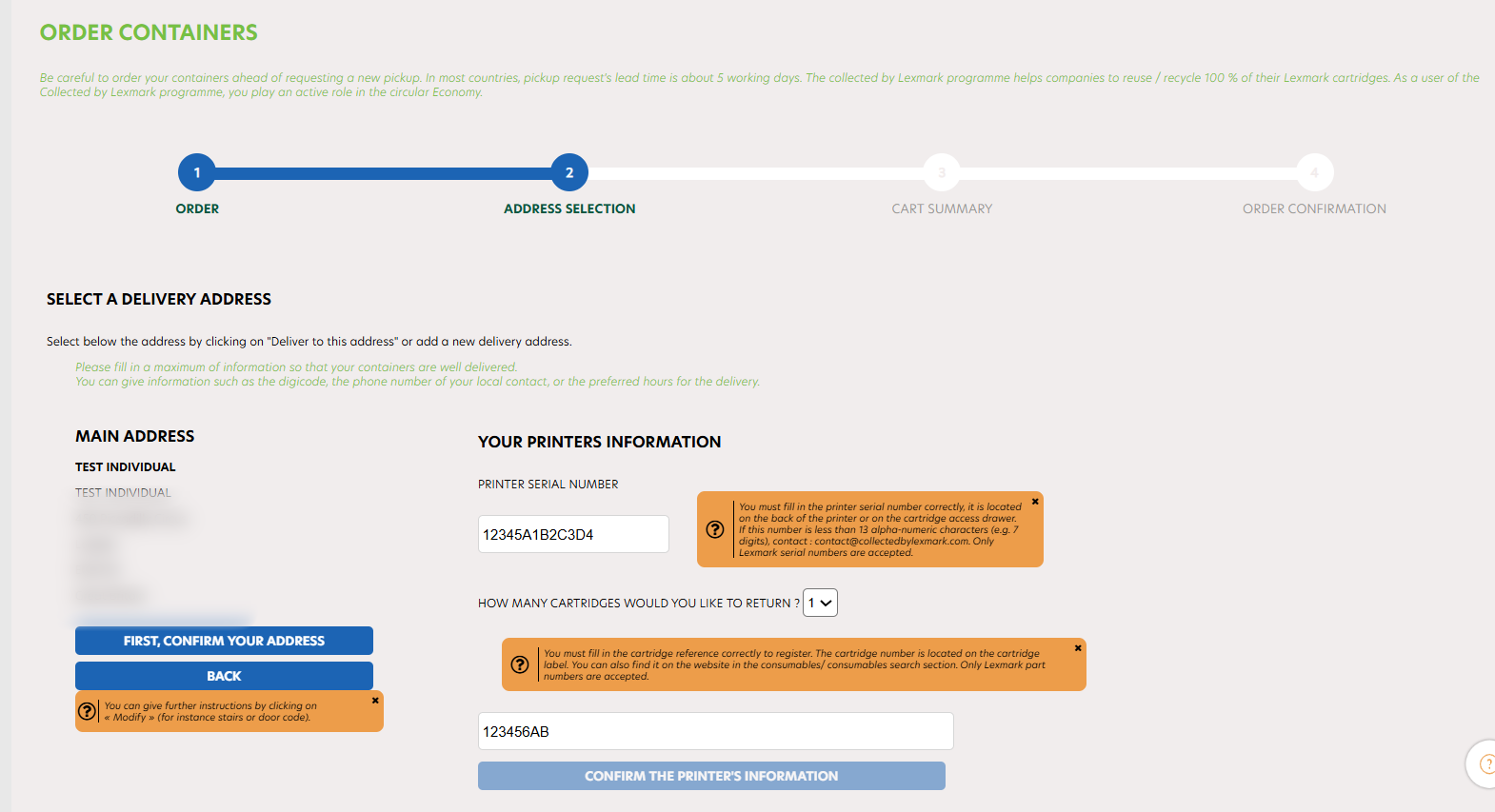
In step two of the process, you can confirm and select your delivery address:
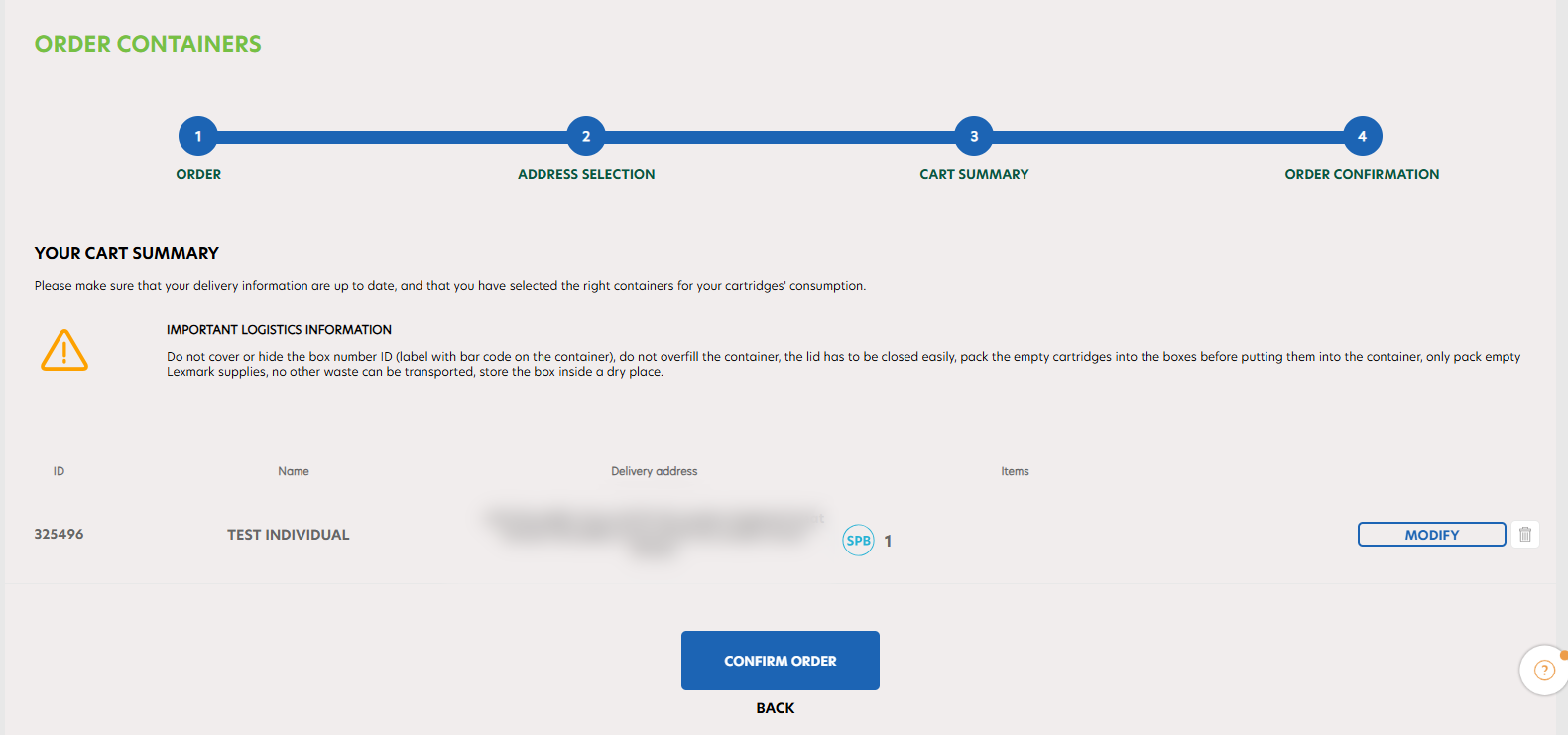
The first time you order a container, you will be asked to confirm your address and enter your printer and cartridge information. Once this has been completed, you can proceed to step 3 and review your cart summary.
Finally, you can confirm your order and all that’s left is to wait for your collection box to arrive:
UK, DE, FR: Take your box to the nearest post office for free return. It already has postage included in the packaging!
All other European countries: You must request a collection of your box by clicking on « Request a pickup » in the sidebar. Follow the steps similar to the box ordering process and wait for our transport team to come collect your full box.
The “reporting” page is the standardized tool of the cartridge collection programme (LCCP). It provides a personalized overview of your estimated contribution to the circulary economy, based on the cartridges you’ve returned through the programme.
On this page, a detailed eco-report is available to give you the exact number of cartridges collected, then recycled or reused. Your CO2 emissions savings are automatically calculated. To obtain a detailed “eco-report”, please click on “eco-report request”. We’ll process it as soon as possible.
« COLLECTED BY LEXMARK » EQUIPMENT PROGRAMME
To register
To log in
My account
Ask for a printer pickup
Managing multi-sites section
Evergreen
Carbon Indicator
The Collected by Lexmark programme has two different programmes : LCCP, for the collection of Cartridges and LECP for collection of Printers.
LECP is a Lexmark Printers Collection Programme. It facilitates the collection management of the printers at their end of life and helps their remanufacturing before they are fully recycled.
Returned devices follows one of two clear routes:
- Local Recycling
Devices with no reuse potential are processed locally in line with applicable regulations, which can help reduce transport distances, associated emissions, and support compliant end-of-life handling near the point of return.
- Reuse (Remanufacture & Parts Recovery)
Devices with reuse potential are sent to our European central operations hub, where they are either remanufactured to be part of our Lexmark Evergreen offering or dismantled to recover reusable components. Both activities form part of our circular handling approach.
This process enables earlier routing and keeps reusable materials in use for longer through remanufacturing or parts recovery. It provides a clear visibility of each device’s next stage and directs it to the appropriate route, without changing your return experience.
The Collected by Lexmark programme enhances all stakeholders corporate social responsability’s strategy and helps the participation of our customers in the circular economy.
The LECP is for businesses that want to be part of a circular economy approach by remanufacturing / recycling used Lexmark printers or it’s parts. By participating in this programme, the company is committed to :
- Return the eligible printers (as defined in the eligibility list) to Lexmark for recovery in accordance with these Terms and Conditions.
- Inform the people within their company (who manage used consumables) of their participation in this programme.
- Comply with regulatory requirements for WEEE (Waste from Electrical and Electronic Equipment) for any printer that would not be returned to Lexmark.
- To be a private or public company and to have a national authentication number
- To be a company located in Europe
- To share with Lexmark a contact representing the company that will manage the programme
To register for the LECP, visit https://www.collectedbylexmark.com/registration and click on « Create new account ». You will then be redirected to the registration form. Be sure to enter a professional email address so that your registration is validated.
When registering an account, you can only add a single location. You will need to complete the below form with your personal details and the company’s information. When filling in the company’s address, google API automatically suggests addresses from its database (auto-completion process).
If your company is already enrolled in the programme, you will not be able to register it a second time. We will send you the contact of the person that is already registered in your company.
Nota bene : to add a new location on top of existing ones or update a company profile, do not use the sign in « Create new account » button. You need to connect and go to my sites.
Please check that :
- You are eligible to the programme
- The email address entered is a professional email address
- You have filled all the compulsory fields
If your company is already registered in the programme, we will send you the contact of the person that is already registered in your company. If this person is no longer working in your company or has changed role, please contact us via the contact form with your e-mail address to become the main contact.
If your company is already registered and if you have not yet activated your password, or if you have forgotten your password, click on « Forgot your password ? » on the homepage to be redirected to the password reset form.
After having entered your email address, you will receive by email the link to set a new password.
The link will be active for the next 24 hours. Think about checking your spams.
To change your password, go to « My profile » section of your account. You can change your password there.
To log in to your LECP account, verify that the entered email address is correct, as well as the associated password.
To log in to your LECP account, enter the email address and password you chose when registering to the programme, then click on « LOG IN ».
When adding a new location on top of existing ones or updating a company profile, do not use the sign in button. You need to connect to your account and go to my sites once connected.
Once you’re connected, you have access to your dashboard. The menu, on the left, helps you to navigate on the platform.
To change your personal information, go to « My profile » section of your account. You can change the following information :
- Name
- First Name
- Phone Number (landline and mobile)
- Password
To make the changes, you need to click on the green icon. The changes will be saved automatically. The email being the log in unique ID, it can only be modified by an admin, please contact us in case you need to change it.
Did your company move ? If you want to update your company’s new address, we invite you to contact us through the contact form.
Lexmark understands the importance of respecting the personal information that is processed and we are committed to protecting the data you entrust to us. For more information, read our Privacy Policy.
If you can’t find the answer to your question in this FAQ, we invite you to contact us via the dedicated contact form.
To set up, modify or complete your pickup information, click on « My sites ». The list of your companies is displayed. Thanks to the search engine you can easily find a company by typing its name and its zipcode.
Click on « See more » on the left of your company name to find all the information regarding your company. Thanks to the search engine you can easily find a company by typing its name and its zip code. Then click on : « See/modify » next to « Pickup Info ».
Open the pulldown menu of your company : you find all the information regarding your company. Click on « Pickup infos »: « See/modify ». A window appears : click on the « Pickup information » tab. You can update your pickup information : pickup address (if different from your registered company profile) : the door code, floor, name and details of the contact who will be on site during the pickup, opening hours, specific information…
The carrier may need to contact the person mentioned in the « Pickup information » tab. Please specify his/her phone number and email.
Tick the box « I want to update the information for this site » before click on « Save ». Your pickup information is automatically updated.
To request a Takeback of your printer for your company, click on « Request a Take Back». The list of your companies is displayed. Thanks to the search engine, you can easily find a company by typing its name and its zipcode.
If a Takeback is already in progress for this company, you will not be able to request a new one until your collection has been done. After clicking on « Select this site », you reach on the second step of the process where you can select the quantity and the printer model, the dimensions of your pallets that have to be collected (5 containers per size and per collection maximum). On the top you can see your company information. Click on « Confirm Pickup » to go to the next step. You can see at which step of the pickup process you are with the progression bar.
You can modify or delete the request at the last confirmation stage.
Select the chosen company by clicking on « Select this site ». You can check the information about your companies by clicking on the button « See more » on the left. You might see one icon : At step number 3, you access to your delivery details (company name, administrative address and company’s pickup address). You can modify the pickup address simply by clicking on « Modify », and go on with the process by clicking on « Collect at this address ».
At step 4 you find your pickup request details (company name, number of containers to be picked up). You can modify your request or delete it by clicking on the bin. Once you’ve clicked on « Confirm pickup », your pickup request is sent.
Once your pickup request is processed, you receive an order confirmation email with the details of your pickup within 24h. You can modify or delete your request within the next 4 hours on the History page.
During each step of this process you can go back to the previous step by clicking on the « Back » button. Moreover, if you go back to the first step, your order is still present on your cart. Therefore, you can resume your pickup at any time.
As soon as you have printers to be collected, you can request a pickup by LECP. Be careful : if a pickup request is already in progress for your company, you will not be able to make a new one.
Check that the email is not in your spam. After 24H, should you not receive any email, please contact us via the contact form.
To track the progress of your pickup request, click on « History ». Thanks to the search engine you can easily find a company by typing its name and its zipcode.
- « Pending » status : the request has been registered.
- « Unvalidated » status: the request hasn’t been canceled by the user within 4 hours, now the admin needs to validate it.
- « Confirmed » status : the pickup has been confirmed and is under preparation; it will be processed within 5 days. The tracking number of your pickup appears as soon as your collection is confirmed.
- « Ready to collect » status : the pickup date is confirmed.
- « Collected » status : the pickup was done within your company.
- « Received by Lexmark » status : the printers have been received by Lexmark
- « Canceled » status : the pickup has been canceled.
- « Denied » status : The pickup could not be done because there was nothing to collect or customer did not contact the logistics team to give his instructions knlux.reverselogistics@kuehne-nagel.com
- « Failed » status : the pickup has failed – ( for example, no one was on site to give the printers, or there were internal issues that occurred on the carrier’s side, such as the printer and pallet got damaged…). In this case, please contact our logistics team : knlux.reverselogistics@kuehne-nagel.com
- « On hold » status : The pickup has been unsuccessful, the customer receives an email and has 14 days to contact the logistics team.
You can cancel a pickup request if your pickup has the « Pending » status.
Click on « History » : your latest actions appear first. You can cancel any container request having the « Pending » status, in the next 4 hours after you’ve done your request.
To do so, click on the red cross. A confirmation window appears : click on « Yes » . You will receive an email confirmation of cancellation.
If you are unable to request a pickup, we invite you to:
- Check that a pickup is not already in progress for your site. In this case, once the pickup will be effective, you’ll be able to request a new container pickup.
- Check that your pickup information is up to date. To do this, go to « My sites » section and click on « Edit », in front of the concerned site. You will then be able to enter the pickup information needed for the pickup.
- Finally check that you have printers and pallets on your site. If you do not have pallet on site, please inform us in the pickup process.
However, should this situation continue, please contact us via the contact form.
Before asking for a pickup of your printer, here are some guidelines to follow :
- Printers must be in good condition. They are collected to be reused. Either dismantled to spare parts or remanufactured as a complete printer.
- All components must be inside the printer.
- Please check the attached label to the confirmation email you received carefully: only the printers listed on this label belong to this sub‑order and must be placed on the corresponding pallet.Important: Special label should be applied to the goods before transportation. Label can be found attached to this email; by clicking on it you will download your label in PDF file. Please print it out and attach it to the pallet containing only the printers listed on this label.
- Only intact pallets to be used.
- Place the products on a pallet, which is slightly larger than the unit’s maximum length and width. Printer should not overlap the pallet.
- Do not place printers on wheels on a pallet. Rather ask for special equipment (lashing strap/cargo bar) when you submit your Takeback request. There is no extra cost of lashing strap/cargo bar request.
- If you stack the products do not exceed the maximum height of 150 cm and pay attention to secure strapping of the products to the pallet. In case of stacking, minimal packaging is required ie. Bubble wrap or a thin foam layer around the printers to hold the pallet content together.
- Stacking an MFP (printer with scanner) is not allowed.
To request a Takeback of your printer for your company, click on « Request a Take Back». The list of your companies is displayed. Thanks to the search engine, you can easily find a company by typing its name and its zipcode.
If a Takeback is already in progress for this company, you will not be able to request a new one until your collection has been done. After clicking on « Select this site », you reach on the second step of the process where you can select the quantity and the printer model, the dimensions of your pallets that have to be collected (5 containers per size and per collection maximum). On the top you can see your company information. Click on « Confirm Pickup » to go to the next step. You can see at which step of the pickup process you are with the progression bar.
You can modify or delete the request at the last confirmation stage.
Select the chosen company by clicking on « Select this site ». You can check the information about your companies by clicking on the button « See more » on the left. You might see one icon : At step number 3, you access to your delivery details (company name, administrative address and company’s pickup address). You can modify the pickup address simply by clicking on « Modify », and go on with the process by clicking on « Collect at this address ».
At step 4 you find your pickup request details (company name, number of containers to be picked up). You can modify your request or delete it by clicking on the bin. Once you’ve clicked on « Confirm pickup », your pickup request is sent.
Once your pickup request is processed, you receive an order confirmation email with the details of your pickup within 24h. You can modify or delete your request within the next 4 hours on the History page.
During each step of this process you can go back to the previous step by clicking on the « Back » button. Moreover, if you go back to the first step, your order is still present on your cart. Therefore, you can resume your pickup at any time.
To request a Takeback of your printer for your company, click on « Request a Take Back». The list of your companies is displayed. Thanks to the search engine, you can easily find a company by typing its name and its zipcode.
If a Takeback is already in progress for this company, you will not be able to request a new one until your collection has been done. After clicking on « Select this site », you reach on the second step of the process where you can select the quantity and the printer model, the dimensions of your pallets that have to be collected (5 containers per size and per collection maximum). On the top you can see your company information. Click on « Confirm Pickup » to go to the next step. You can see at which step of the pickup process you are with the progression bar.
You can modify or delete the request at the last confirmation stage.
Select the chosen company by clicking on « Select this site ». You can check the information about your companies by clicking on the button « See more » on the left. You might see one icon : At step number 3, you access to your delivery details (company name, administrative address and company’s pickup address). You can modify the pickup address simply by clicking on « Modify », and go on with the process by clicking on « Collect at this address ».
At step 4 you find your pickup request details (company name, number of containers to be picked up). You can modify your request or delete it by clicking on the bin. Once you’ve clicked on « Confirm pickup », your pickup request is sent.
Once your pickup request is processed, you receive an order confirmation email with the details of your pickup within 24h. You can modify or delete your request within the next 4 hours on the History page.
During each step of this process you can go back to the previous step by clicking on the « Back » button. Moreover, if you go back to the first step, your order is still present on your cart. Therefore, you can resume your pickup at any time.
As soon as you have printers to be collected, you can request a pickup by LECP. Be careful : if a pickup request is already in progress for your company, you will not be able to make a new one.
Check that the email is not in your spam. After 24H, should you not receive any email, please contact us via the contact form.
To track the progress of your pickup request, click on « History ». Thanks to the search engine you can easily find a company by typing its name and its zipcode.
- « Pending » status : the request has been registered.
- « Unvalidated » status: the request hasn’t been canceled by the user within 4 hours, now the admin needs to validate it.
- « Confirmed » status : the pickup has been confirmed and is under preparation; it will be processed within 5 days. The tracking number of your pickup appears as soon as your collection is confirmed.
- « Collected » status : the pickup was done within your company.
- « Received by Lexmark » status : the printers have been received by Lexmark
- « Canceled » status : the pickup has been canceled.
- « Denied » status : The pickup could not be done because there was nothing to collect or customer did not contact the logistics team to give his instructions knlux.reverselogistics@kuehne-nagel.com
- « Failed » status : the pickup has failed – ( for example, no one was on site to give the printers, or there were internal issues that occurred on the carrier’s side, such as the printer and pallet got damaged…). In this case, please contact our logistics team : knlux.reverselogistics@kuehne-nagel.com
- « On hold » status : The pickup has been unsuccessful, the customer receives an email and has 14 days to contact the logistics team.
You can cancel a pickup request if your pickup has the « Pending » status.
Click on « History » : your latest actions appear first. You can cancel any container request having the « Pending » status, in the next 4 hours after you’ve done your request.
To do so, click on the red cross. A confirmation window appears : click on « Yes » . You will receive an email confirmation of cancellation.
If you are unable to request a pickup, we invite you to:
- Check that a pickup is not already in progress for your site. In this case, once the pickup will be effective, you’ll be able to request a new container pickup.
- Check that your pickup information is up to date. To do this, go to « My sites » section and click on « Edit », in front of the concerned site. You will then be able to enter the pickup information needed for the pickup.
- Finally check that you have printers and pallets on your site. If you do not have pallet on site, please inform us in the pickup process.
However, should this situation continue, please contact us via the contact form.
Before asking for a pickup of your printer, here are some guidelines to follow :
- Printers must be in good condition. They are collected to be reused. Either dismantled to spare parts or remanufactured as a complete printer.
- All components must be inside the printer.
- Only intact pallets to be used.
- Place the products on a pallet, which is slightly larger than the unit’s maximum length and width. Printer should not overlap the pallet.
- Do not place printers on wheels on a pallet. Rather ask for special equipment (lashing strap/cargo bar) when you submit your Takeback request. There is no extra cost of lashing strap/cargo bar request.
- If you stack the products do not exceed the maximum height of 150 cm and pay attention to secure strapping of the products to the pallet. In case of stacking, minimal packaging is required ie. Bubble wrap or a thin foam layer around the printers to hold the pallet content together.
- Stacking an MFP (printer with scanner) is not allowed.
- Please check the attached label attached to the confirmation email you received carefully: only the printers listed on this label belong to this sub‑order and must be placed on the corresponding pallet.Important: Special label should be applied to the goods before transportation. Label can be found attached to this email; by clicking on it you will download your label in PDF file. Please print it out and attach it to the pallet containing only the printers listed on this label.
To request a Takeback of your printer for your company, click on « Request a Take Back». The list of your companies is displayed. Thanks to the search engine, you can easily find a company by typing its name and its zipcode.
If a Takeback is already in progress for this company, you will not be able to request a new one until your collection has been done. After clicking on « Select this site », you reach on the second step of the process where you can select the quantity and the printer model, the dimensions of your pallets that have to be collected (5 containers per size and per collection maximum). On the top you can see your company information. Click on « Confirm Pickup » to go to the next step. You can see at which step of the pickup process you are with the progression bar.
You can modify or delete the request at the last confirmation stage.
Select the chosen company by clicking on « Select this site ». You can check the information about your companies by clicking on the button « See more » on the left. You might see one icon : At step number 3, you access to your delivery details (company name, administrative address and company’s pickup address). You can modify the pickup address simply by clicking on « Modify », and go on with the process by clicking on « Collect at this address ».
At step 4 you find your pickup request details (company name, number of containers to be picked up). You can modify your request or delete it by clicking on the bin. Once you’ve clicked on « Confirm pickup », your pickup request is sent.
Once your pickup request is processed, you receive an order confirmation email with the details of your pickup within 24h. You can modify or delete your request within the next 4 hours on the History page.
During each step of this process you can go back to the previous step by clicking on the « Back » button. Moreover, if you go back to the first step, your order is still present on your cart. Therefore, you can resume your pickup at any time.
When you click on « My Sites », you have a display of all the companies associated with your account. You can delete a company by clicking on the red cross, or add a new company by clicking on « Add a new site ».
You only have to fill in the new company name, address. The Google API will automatically suggest addresses and if you select one, it will be automatically filled in.
The list of your sites is displayed. If you have multiple sites, you can search for a specific site with the improved search engine. You can search by site name, street, postcode, company ID, city, country code or email. You can also view sites for which an order or pickup is in progress.
In « My Sites » section, you can see your company details by clicking on the arrow or the button « SEE MORE » , located at the left of your company name.
You can see or update your pickup information : click on « See/Modify ». This information is important to inform our carriers. You can fill in a maximum of information such as the door codes, specific local contact information like the receptionist’s contact details or the required documents…
To be able to request a Take Back, an address must be filled in. If you want the pickup information to be the same as the administrative information, you can tick the box “copy the company’s main address”.
From the section « My Sites », you will be able to manage your own team if you are the main contact, and compose it with the people that manage the same site as you. In order to create your team, you have to click on « MY TEAM ».
A new page will appear. The main contacts are displayed with the yellow star. You have a full visibility of the other team members who are able to request a Take Back for this specific company. For one company, you can have a team of several members.
If you want to add a new team member to your team, first you have to make sure that the member you want to add is not yet registered in the database. You have to search by filling in the first name, last name, phone number and email address. If he/she is already registered, you can click on « ADD » ; if the user is not yet registered, you can click on « Create user if the user does not already exist » :
The team administrator can add or delete people from a team : he only needs to fill in the user information and click on « CREATE ». The user will receive an email with a link to set his password. Once done, this new user is able to log in to the platform.
If you want to set the new user as the main contact (the one with the yellow star), you have to tick the box « Is the user the main contact of the company ? ».
To find a site, go to « My sites » section of your account.
The list of your sites is displayed. If you have multiple sites, you can search for a specific site with the improved search engine. You can search by site name, street, postcode, company ID, city, country code or email. The search engine is the same for the Take Back request and history page. You can also view sites for which an order or pickup is in progress.
You can request a Take Back for different sites at once, from your dashboard, or from the left navigation menu, « Take Back ».
The list of all your sites is displayed : you can filter this list by displaying your sites alphabetically (A-Z) or by increasing or decreasing stock. The search engine at the top of the page also allows you to find a site faster.
Click on « SELECT THIS SITE » on the line matching your site.
You can choose, for each of the sites you manage, the type of containers and the quantity you want to order (from 0 to 5 maximum by container’s type).
When you have completed your requests for each site, click on your cart to finalize your global order.
Once your request has been made, you will receive an order confirmation email with the details of your request. Be careful if a request is already in progress for a given site, you will not be able to order new ones until your previous order has been delivered.
Check that the email is not in your spam. After 24H, should you not receive any email, please contact us via the contact form.
You can request a Take Back for different sites at once or for only one site, from your dashboard, or from the left navigation menu, « Take Back request ».
The list of all your sites is displayed : you can filter this list by displaying your sites alphabetically (A-Z) or by increasing or decreasing stock. The search engine at the top of the page also allows you to find a site faster.
Click on « SELECT THIS SITE » on the line corresponding to the site for which you need to place an order.
Select the type of request and the number of printers you want to be collected.
Your cart will automatically update. You can move to the next line to place a request for another site or click on your cart to finalize your pickup.
Once your pickup has been made, you will receive a pickup confirmation email with the details of your pickup.
The Evergreen offer is a program initiated by Lexmark that focuses on the remanufacturing and resale of printers. It is part of a circular economy approach where Lexmark collects end-of-life printers through their Lexmark Equipment Collection Programme (LECP) and refurbishes them through an advanced industrial remanufacturing process, ensuring that up to 90% of their parts are reused or repaired. The remanufactured printers are then made available for resale as part of the Evergreen offer. The printers also receive new hard drives, the latest software and firmware updates, and are covered by Lexmark’s guarantee for quality without compromise. For more information, please contact emeasalesops@lexmark.com
You will soon be able to purchase your remanufactured printers through your online hub. By participating in the Evergreen offer, you will not only gain access to affordable and high-quality printers but also contribute to a sustainable and environmentally friendly approach to electronic waste.
The printer should be in good shape and can still be reused. You simply need to make sure that it is registered on the Lexmark online hub and enrol in Lexmark’s equipment collection program. Then, the only thing to do is for the user to fill in some information about the product profile. Our carrier will confirm your request, and a few days later, it will be on the way to be shipped to a remanufacturing facility where it will be thoroughly checked, and many of its components will be rebuilt through an advanced industrial manufacturing process.
The remanufactured printers are then made available for resale as part of the Evergreen offer. The printers also receive new hard drives, the latest software and firmware updates, and are covered by Lexmark’s guarantee for quality without compromise. For more information, please contact emeasalesops@lexmark.com
The carbon indicator is a new feature available to all participants in Lexmark’s printer collection programme (LECP). It gives a personalized estimate of your contribution to the circular economy, based on the end-of-life printers you’ve returned through the programme.
Moreover, the carbon indicator uses carbon comparator technology to provide more than just numbers: daily equivalents put these figures into context, giving you a realistic picture of the impact of your printers.
Curious about your impact and potential savings? Explore now using the new carbon indicator!
 DOWNLOAD THE FULL PRINTER USER GUIDE